Getting started
The “Today” dashboard
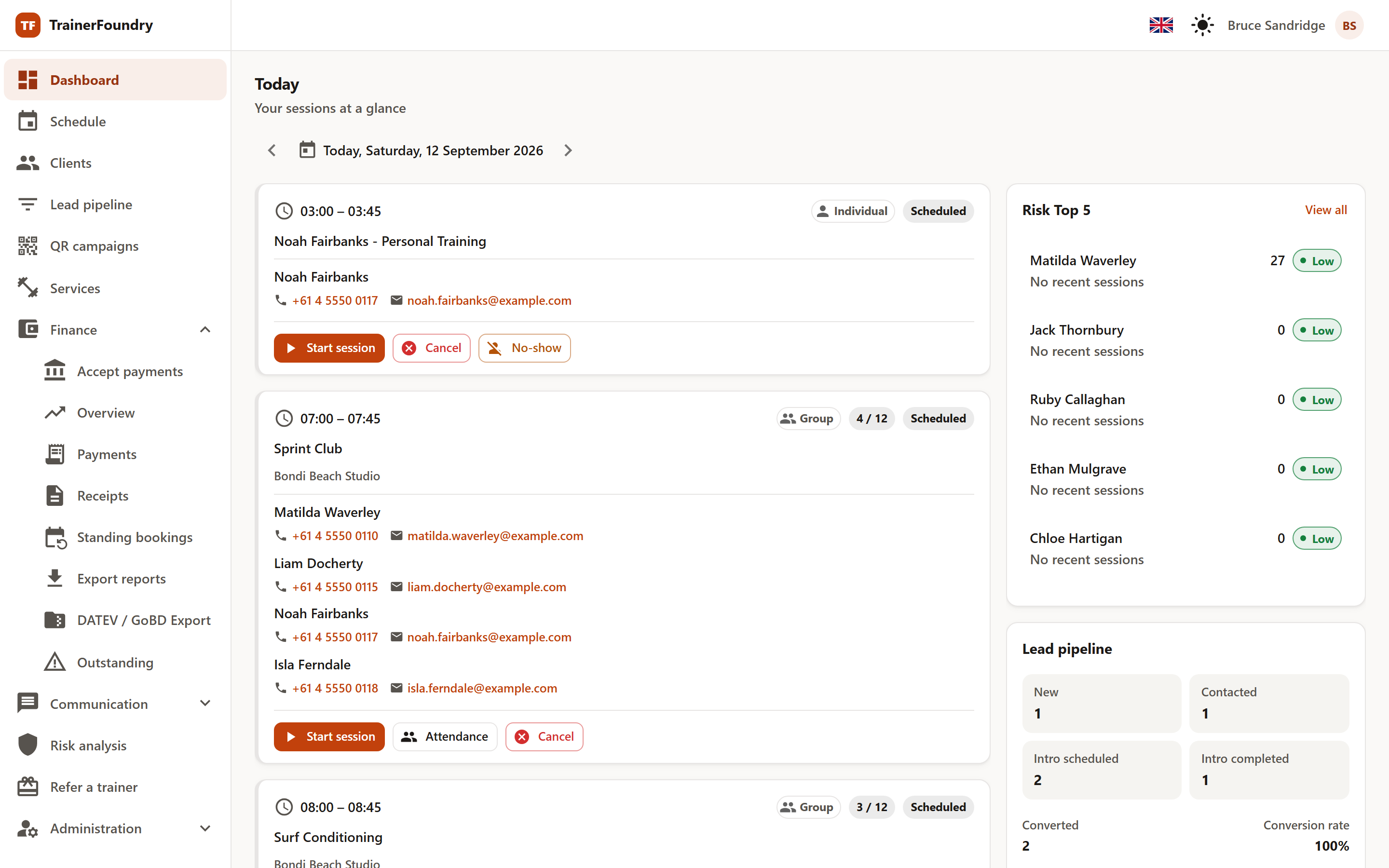
The dashboard is TrainerFoundry's home screen, and it answers exactly one question: what's on today? On the left is your day as a list of cards — one per session, earliest to latest — with the actions you actually need during the day. On the right sit two cards that look past today: your clients at the highest risk of churning, and where your lead pipeline stands. Anything beyond that belongs on the Calendar.
Paging through days
Above the session cards sits the date, prefixed with Today when that's the day shown. The arrows on either side step to the previous or next day — handy for a quick look at tomorrow the evening before. Once you're on a different day, a Today button appears next to it. Paging only changes the session list — the two cards on the right always show the current state, not the selected day.
When nothing's scheduled for a day, the dashboard says so plainly — “No sessions on this day. Schedule sessions in the calendar.” — so an empty list never reads as something failing to load.
What's on a card
Top left is the time, from–to; top right the badges: whether it's an Individual or Group session, for a group also the capacity (say 2 / 5), and the status:
- Scheduled — The session is booked but hasn't started yet.
- In progress — You've started the session.
- Completed — The session is finished and settled.
- Cancelled — The booking was called off, with a reason on record.
- No-show — The client didn't show up, with no cancellation.
Below that sit the title and location, plus the attendees with phone number and email — both clickable, so you can call or message someone directly if they don't turn up. The session that's currently running is highlighted and carries the Now badge; the view refreshes on its own every minute, so the highlight moves along with it.
The card itself is clickable too: clicking it opens the session's detail view on the right — the same one you know from the Calendar — with every detail on the booking, attendees and payment. The buttons and links on the card keep working on their own; only clicking the open area opens the detail view.
The quick actions
Which buttons show up depends on the status and kind of session — so you only ever see the actions that actually make sense right now:
- Scheduled one-on-one — Start session, Cancel, No-show.
- Scheduled group class — Start session, Attendance, Cancel. There's no "No-show" here: for a group, who missed it is recorded per attendee through the roster.
- Session in progress — Complete, plus Attendance for a group.
- Completed, cancelled or no-show — no more actions; the card is a record from here on.
Start session sets the session to "In progress". If you want to record attendance while you're at it, take walk-ins, or show the QR code for self-check-in, Attendance takes you to the full session view.
Cancel and No-show each ask for a reason, which stays attached to the booking and later answers why a session went to waste. Cancel always hands the client's credit straight back, no exceptions. No-show forfeits it instead — the credit was already consumed at booking — so if you want to be lenient there, you can still return the credit afterwards as a goodwill gesture. There's no cancellation fee: what's forfeited is only the booked credit itself, as your cancellation policy in Settings sets it.
Unpaid bookings
Sessions still owed money carry the Unpaid badge, and the affected person is marked in the attendee row as well. That way open money shows up right where you're already looking — instead of surfacing first in your bookkeeping.
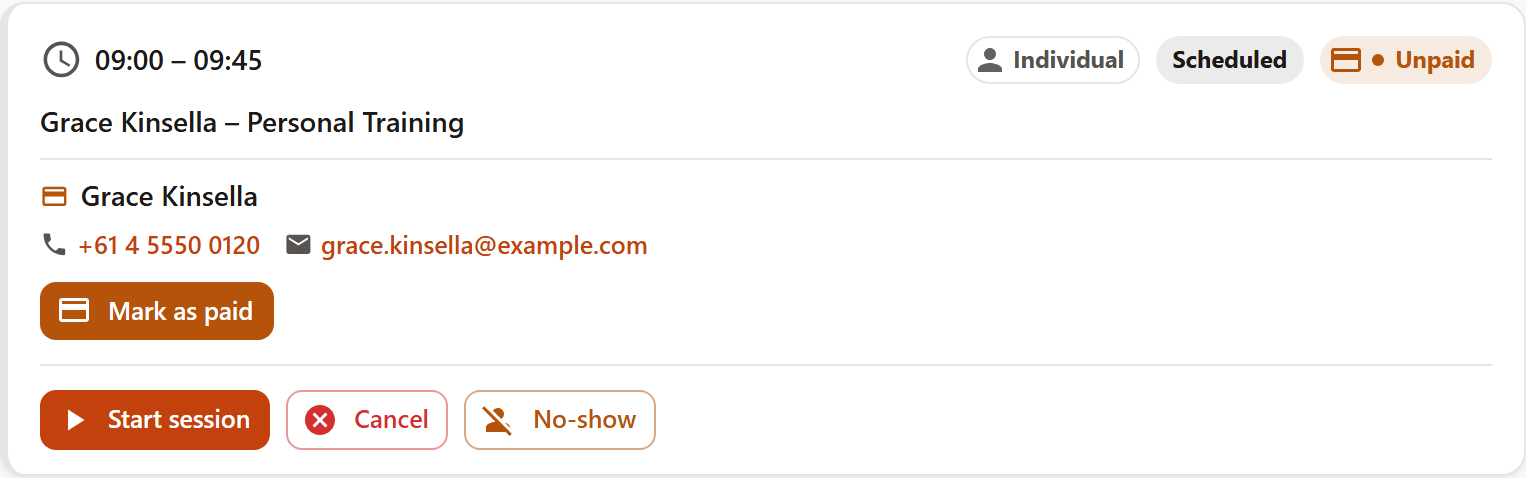
You settle it right on the card:
- Mark as paid — the client paid you in person; the booking counts as settled immediately.
- Open payment link — opens the online payment to pass along. This button only appears when the booking actually has a payment link; without a connected Stripe account, a note explains that you can't collect online yet and points you at Mark as paid instead.
Completing, cancelling or marking a no-show on an unpaid session asks once whether you really want to. Completing or marking a no-show leaves the payment request as it was — the outstanding amount stays open and keeps showing under Finance → Outstanding. Cancelling instead withdraws the payment request, so there's nothing left to collect on that session (for a shared series request, the sessions that remain get a fresh one).
The right column: risk and leads
Beside the day's list sit two cards that don't depend on the selected date — they always show the current state:
- Risk Top 5 — your five clients at the highest risk of churning, each with score, level and the primary factor. Clicking a row opens the detail view with the full factor breakdown; View all leads to Risk analysis. When there's no risk data yet, the card says so plainly instead of sitting empty.
- Lead pipeline — how many leads currently sit in New, Contacted, Intro scheduled and Intro completed, plus Converted and the conversion rate. Clicking the card opens the Lead pipeline. With no leads at all yet, it says so instead of showing four empty tiles.
On a phone, the columns stack: the day's sessions first, the two cards below.