Account & settings
Settings
Under Administration → Settings — or faster, via your initials at the top right — sit eight tabs. Everything you entered in the setup wizard can be changed here, and there's more besides.
- Profile — Who you are, what your public booking page looks like — and your business card.
- Business settings — Currency, default message language, time zone, working hours and the rules bookings follow.
- Locations — Where you train.
- Cancellation policy — How late a client can cancel for free.
- Calendar integration — Your appointments in your own calendar.
- Notifications — Your own per-event channel preferences, for the account you’re signed in with.
- Appearance — Colour mode and colour palette for the app.
- Tax & Billing — Invoicing details and tax scheme.
Two of these have their own chapter: Notifications and Tax & VAT — the Tax & Billing tab also carries your own legal name for TrainerFoundry's own subscription invoices to you (a separate matter from your client tax profile, covered in that chapter). The other six are covered here. Not every tab works the same way: Profile, Business settings, Cancellation policy and Notifications each have their own Save button at the bottom, applying only to that tab. Locations saves inside the add/edit dialog for each entry. Calendar integration and Appearance have no Save button at all — Calendar integration acts the moment you click Connect, Disconnect, Sync or Generate; Appearance applies the instant you pick a colour mode or palette.
Profile
The Profile tab isn't a self-description for the archive — it's the template for your public booking page, the page where a lead lands after scanning a QR code to book an intro session. What you enter here is read by people who don't know you yet.
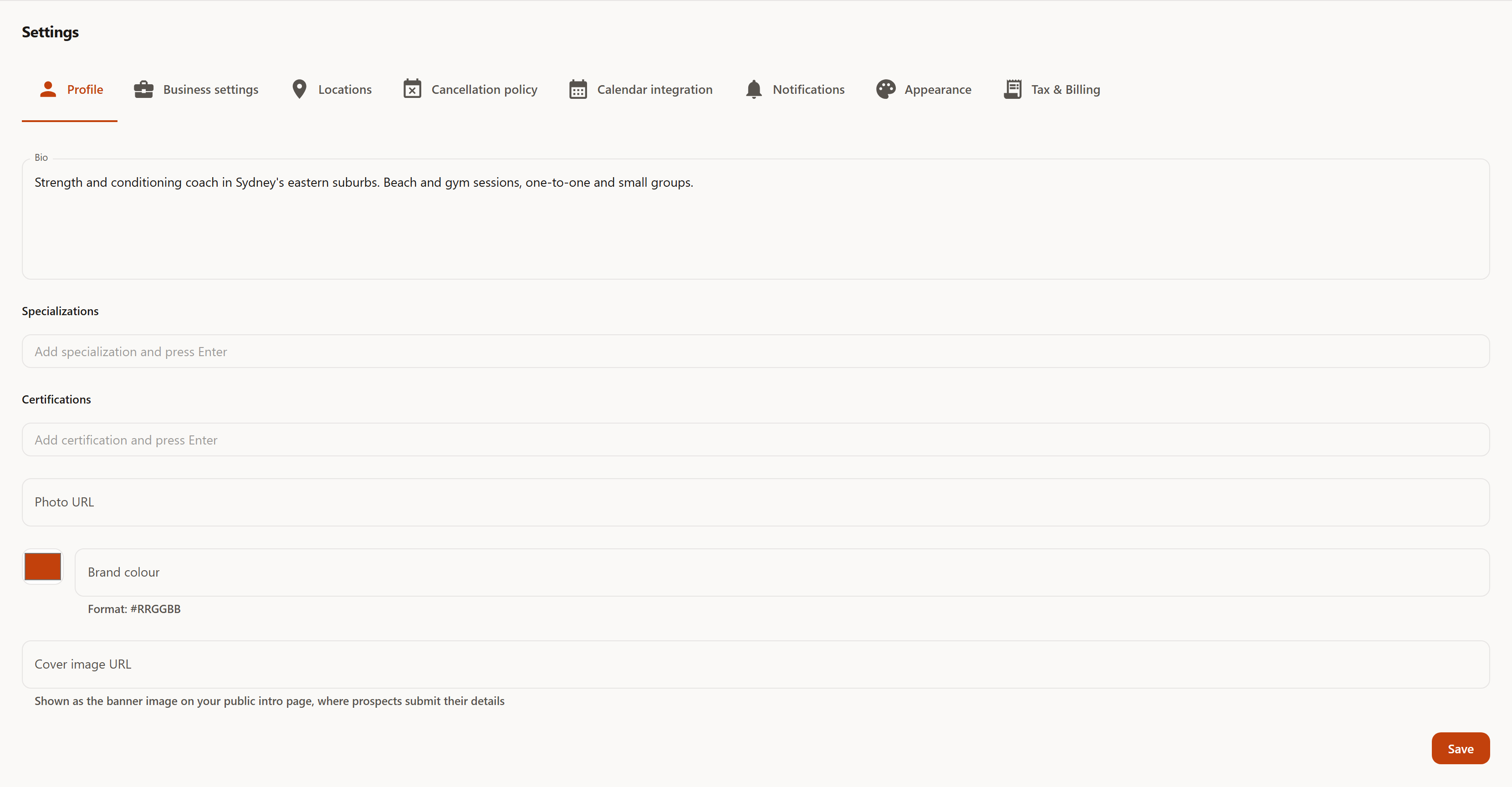
Bio allows up to 2000 characters — enough for a paragraph explaining who you work with and how. Specializations and Certifications aren't free text but lists: type an entry and press Enter, and it appears as a chip you can remove again with the ✕.
The three fields below shape how that page looks.
Photo URL and
Cover image URL expect addresses to
images that already live somewhere online — TrainerFoundry doesn't upload files here. The
brand colour, in
#RRGGBB format,
tints your public booking page and your public business card — on the business card, the
header band, the buttons and the links. Where needed, TrainerFoundry adjusts buttons and
links slightly there so everything stays easy to read. Leave the field blank and both show their
own default colours: a neutral blue on the booking page, a calm teal on the business card.
The brand colour has no effect on the trainer app itself — that's what the
Appearance tab is for.
Your business card
At the very top of the Profile tab sits the Your business card section. The business card is your public page with profile, locations, offers and legal notice — for prospects and your clients. It's built automatically from your details in TrainerFoundry; there's nothing to design. The section shows the link to your business card, with Copy link and Open business card, and whether it's Online or Not online yet.
The business card goes online by itself as soon as its legal notice is complete — there's no publish button. That takes your company or legal name and your address from Settings → Tax & Billing, plus a contact email. If anything is still missing, the section lists it and tells you where to enter it. While your account isn't active, the business card isn't online.
Under the contact details you set an email address and a phone number just for the business card; leave a field empty and your account's email address or phone number applies. Show email address and Show phone number decide what appears in the business card's contact section; the legal notice always shows your email address, as the law requires. Save contact details applies your changes. Once your business card is online, TrainerFoundry also shows its link next to Stripe's form — in case Stripe asks for your business's website.
Business settings
The most important tab, because it decides when and how a booking can happen at all.
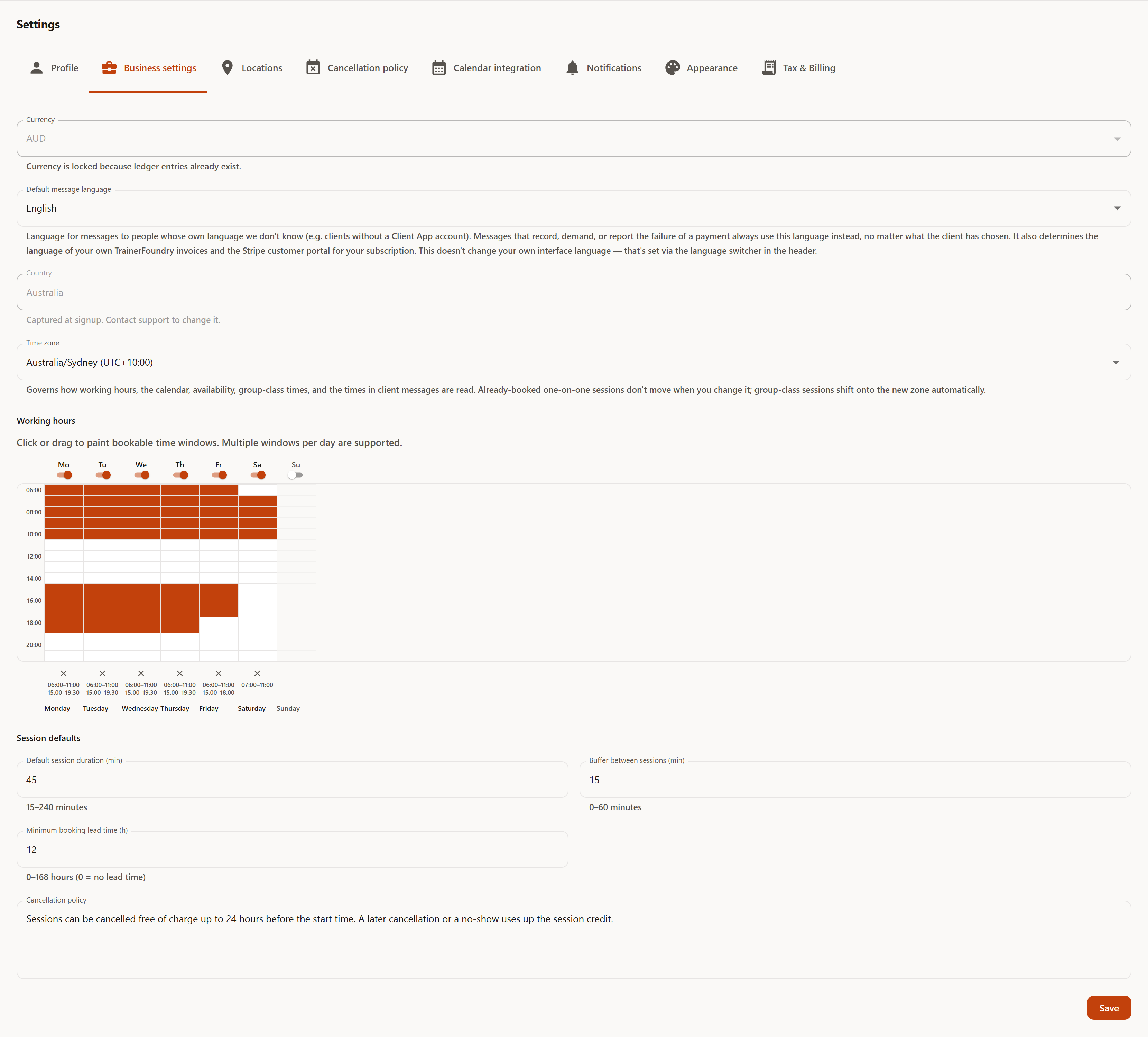
Currency and Country sit at the top and are both read-only once your business is running. Country was captured at signup and can only be changed via support — use the in-app support chat for that. Currency stays editable until your first booking lands in your ledger; after that it's locked, so past and future activity can't end up in two different currencies side by side.
Between currency and country sits Default message language — German or English. It decides which language TrainerFoundry writes its automatic messages in for people whose own language the system doesn't know — in practice, clients with no Client App account of their own, who never set a language anywhere. For anything sent to your clients about a payment — invoice, credit note, refund, payment request, a payment reminder, and the notices around a failed or consequently terminated subscription payment — it applies regardless of what language the client themselves picked; details are in the Notifications chapter. At signup it's derived automatically from your country — Germany, Austria and Switzerland get German, every other country gets English — and you can change it here at any time, with no lock. Messages to you, though — including the notices about your clients' payments, such as a payment received — as well as your own TrainerFoundry invoices and the language Stripe's customer portal shows for your subscription don't follow this setting: they follow your own interface language instead, which you switch independently using the language switcher in the header; details in Subscription & invoices.
Below that sits Time zone — derived automatically from your country at signup, but editable here at any time, with no lock. It decides which time TrainerFoundry reads your working hours, the calendar, availability, group-class times and the times in your messages to clients in — in short, every time you see or set in the app. Changing it doesn't move an already-booked one-on-one session: a session created for 9:00am Sydney time stays that exact instant even if you switch time zones afterwards. Group-class sessions, on the other hand, follow the new time zone — already-booked ones included, with no notification sent to clients. Only how future working hours are read changes otherwise with the switch.
Working hours are a grid, not a form: you click or drag across the cells and paint the windows in which booking is allowed. A day can have more than one window — in the screenshot, 06:00–11:00 and 15:00–19:30, with a break between them. The switch above each column turns the whole day off. That isn't cosmetic: TrainerFoundry computes the open slots your clients get offered in the Client App straight off this grid. Whatever you leave uncoloured doesn't exist for them.
Below that, the session defaults: default session duration (15–240 minutes) is the pre-filled value when you create a new session; buffer between sessions (0–60 minutes) keeps breathing and reset-up room free by blocking a booking that would start immediately after another. Minimum booking lead time (0–168 hours) decides how last-minute a client can still book: set it to 12 and clients are genuinely blocked from booking in the next twelve hours. At 0, they can book right up until start time.
At the very bottom sits a Cancellation policy text field. This text now appears in the Client App both when a client books and with any purchase from the offer list — in each case before it becomes binding; leave it blank and clients simply see nothing there. It still doesn't appear on a booking confirmation or an invoice. The rule that actually takes effect — how late a client can cancel for free, and what happens to their credit on a late cancellation — is the one you set on the next tab.
Locations
A location is a place you train; every session can be assigned to one. Add location asks for a name, a type and an address.
- Gym — A fixed room. The address is required.
- Outdoor — A park, beach, running track. An address is required here too — it’s the meeting point.
- Online — Video training. The only type with no address.
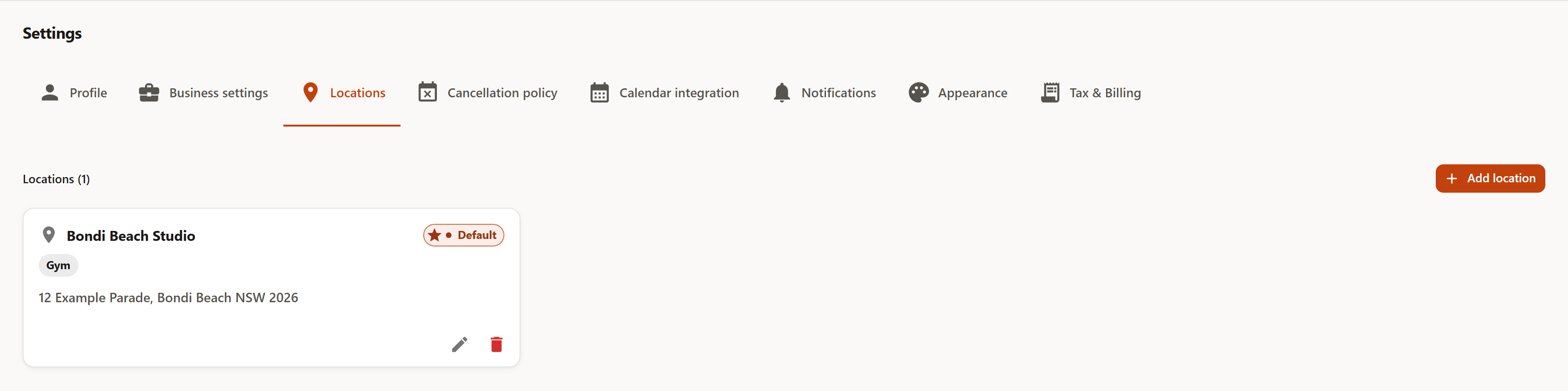
The Set as default location switch decides which location every one of your clients' own bookings from the Client App lands at — the Client App has no location picker at all, so this is the only say a client's booking ever has in the matter. It has no effect on your own session dialog — there you choose the location yourself every time, or leave it as "No location". At most one location carries the badge at a time; if none does, the oldest location you created is used instead. If you only work from one location, set it once and never think about it again.
Delete is refused while sessions are still attached to the location — past sessions as well as future ones. The app tells you so right when you try, and nothing is lost. A location can only be deleted once no session references it anymore. For everything else, rename it instead of deleting — via the pencil Edit icon on the card — that's always possible and updates retroactively everywhere, without losing anything.
Cancellation policy
This is where the rule TrainerFoundry actually uses to judge a cancellation lives.
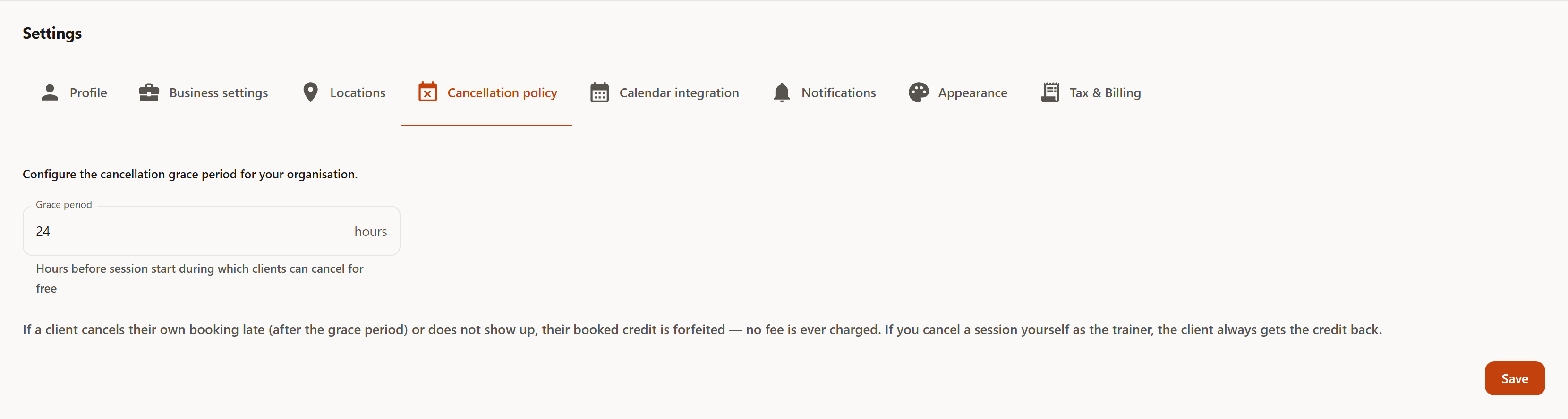
The grace period is the number of hours before a session starts during which a client can still cancel for free. Cancel earlier than that, and it counts as a free cancellation — their session credit goes back onto their balance. Cancel later, and it's a late cancellation — the credit is used up. This period is the one setting on this tab that actually does something, which is why it matters.
An individual training type can bring its own grace period; where one is set, it overrides the period on this tab. That's useful for group classes, where a shorter window is reasonable, while 1:1 training might warrant the full 24 hours. If you cancel a session yourself, by the way, the client always gets their credit back regardless of any grace period.
There are deliberately no fee fields here. Directly under the grace period, the tab states this notice, verbatim: "If a client cancels their own booking late (after the grace period) or does not show up, their booked credit is forfeited — no fee is ever charged. If you cancel a session yourself as the trainer, the client always gets the credit back." The client never gets an additional payment request either way.
Calendar integration
The tab shows two routes into your own calendar — the direct connection to Google and Outlook, which doesn't exist yet, and the iCal feed, which already works fully.
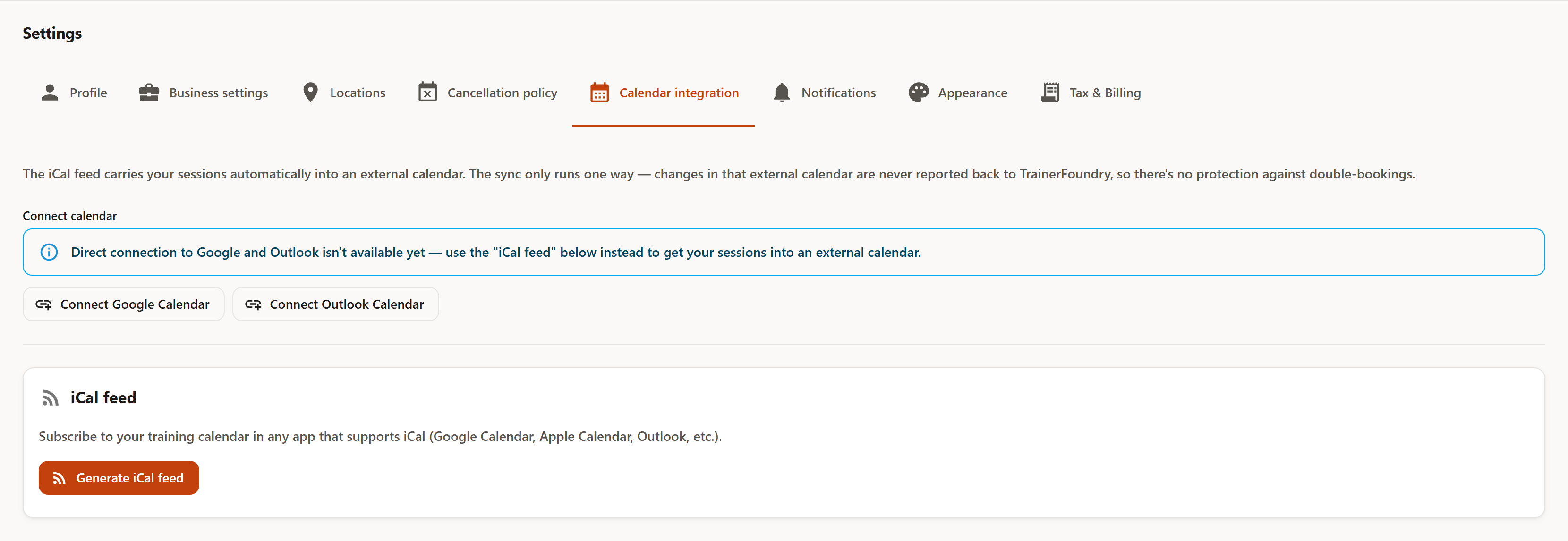
The iCal feed is a subscription: you generate it once with Generate iCal feed and add the address shown, unchanged, to Google Calendar, Apple Calendar or Outlook as a calendar subscription — it's a complete, ready-to-paste URL, nothing needs to be prepended. Your sessions then show up there, one way only — the feed shows your TrainerFoundry sessions, it never sends anything back. One thing to keep in mind: the address carries an access token — whoever has it can see your session calendar. Don't share it; if it ever leaks, Regenerate invalidates the old address.
The two buttons, Connect Google Calendar and Connect Outlook Calendar, are disabled, with a note right above them: direct connection to Google and Outlook isn't available yet. Until a real connection ships — a separate, larger feature — the iCal feed is your route into your own calendar.
Appearance
Two settings, both purely for your own view. Color mode offers System, Light and Dark — "System" follows your operating system and goes dark on its own in the evening. Color palette offers Forge (the warm orange default), Emerald and Graphite.
Both are tied to your account, not your browser: your choice follows you to any device you sign in on. The same colour-mode switch also sits at the top right of the header, for when you're in a hurry. Your clients see none of this: the Client App has no brand-colour setting of its own. Only your public booking page and your public business card pick up the brand colour you set on the Profile tab.