Management
Calendar & sessions
Under Schedule in the left-hand navigation is your session calendar: this is where you see who you're training and when, create new one-on-one sessions, reschedule them and cancel them. Every session is tied to a client and to that client's payment — so TrainerFoundry automatically checks, the moment you create it, whether the session is already covered.
The three views
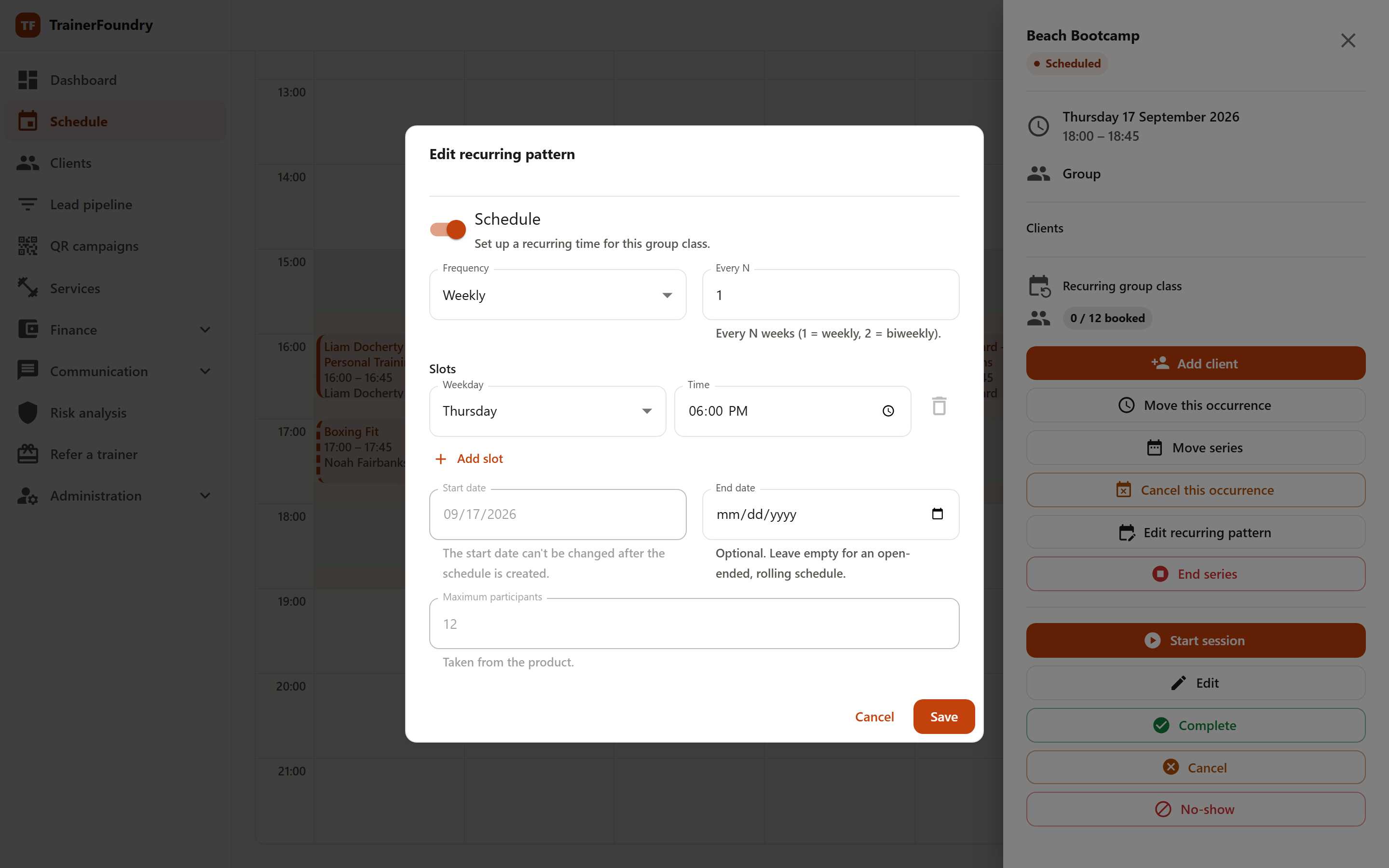
Switch between Day, Week and Month at the top right. The arrows beside them page backward and forward, and Today jumps back to the current period. Every time you see and set here is your business's own time zone, not your browser's — so the calendar reads the same way for you whichever device or location you open it from.
- Day — A single column for one day — the most precise view when sessions overlap or run close together. It's the default view on your phone.
- Week — Monday through Sunday side by side. The default view on desktop, and the best overview for finding free time.
- Month — Every session of the month as a compact list per day. Good for rough planning; the week view is easier for moving individual sessions.
In the day and week views, your working-hours grid sits in the background: the lightly shaded bands are the times you train according to your business hours, including the buffer between sessions. You set the grid under Settings → Business settings; it's a guide, not a lock — sessions outside it are always possible.
Creating a session
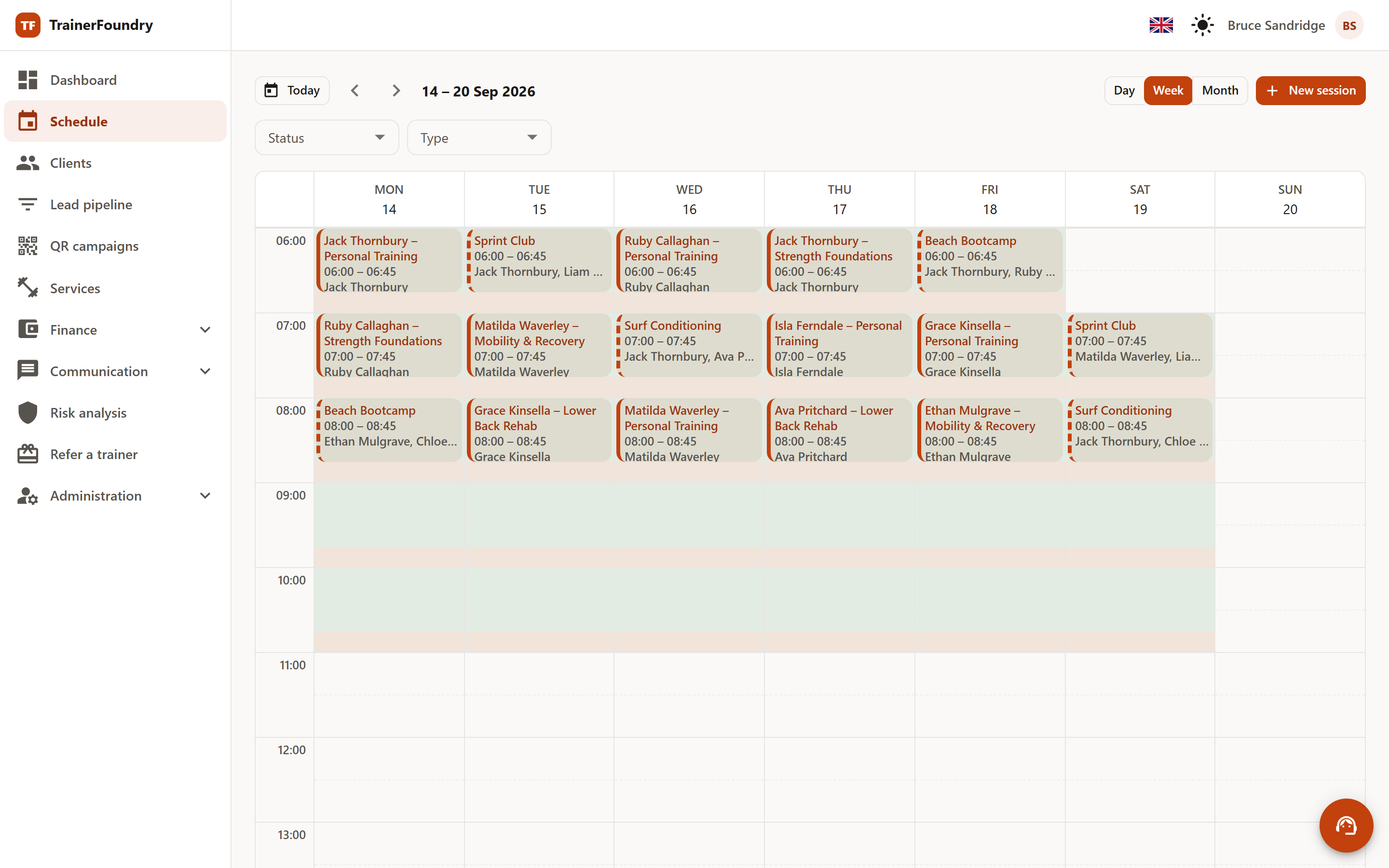
There are two ways: click New session at the top right, or click the time you want directly in the calendar — the day and start time come pre-filled.
The calendar is where you schedule one-on-one sessions. Group classes aren't created here — they come from a training type's class schedule; see Services & offers.
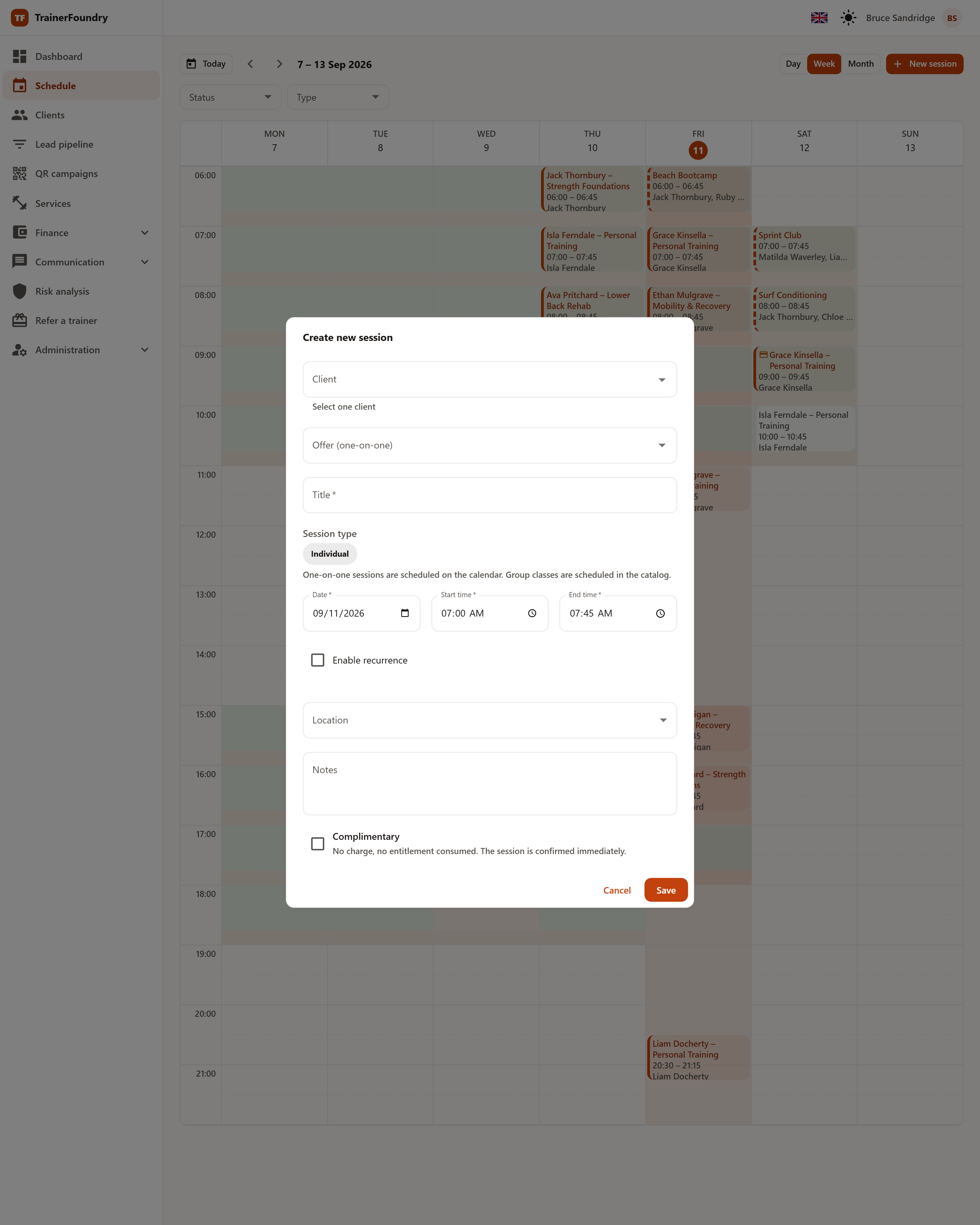
The fields, in the order you fill them in:
- 1 Client — start typing the name; the search only suggests active clients.
- 2 Offer — what this session is paid with. Right underneath, TrainerFoundry tells you what that means for the client (see "How the session gets paid for").
- 3 Title — suggested from the client and training type once both are set. Once you type something yourself, your entry stays put.
- 4 Date, start time, end time — the end time follows the training type's duration and stays editable. Without an offer, your default session duration from Settings applies.
- 5 Location and notes — both optional. You manage your locations in Settings.
At the bottom is Complimentary. It creates the session without any billing: no offer needed, no credit consumed, no payment request — meant for trial sessions and goodwill bookings.
How the session gets paid for
Once you pick a client, TrainerFoundry checks whether the session is covered and tells you directly under the offer field:
- Credit available — the client still has sessions left on a pack or a membership. Saving the session consumes one.
- Active unlimited membership — no offer is needed, the field is hidden.
- No credit — the session is still created, but stays unpaid. You choose whether it's billed by payment link or in cash; with a payment link, you get it right after saving to pass along.
An unpaid session doesn't block anything — it's scheduled and run as normal, and sits under Finance → Outstanding until payment comes in.
Repeating sessions
For a fixed training rhythm, tick Enable recurrence in the dialog and choose the pattern:
- Every N days — say, every 7 days for weekly or every 14 for fortnightly.
- Weekdays — several days a week, say Monday and Thursday, optionally only every second week.
Next you set when the series ends — via an end date or a number of repetitions. Saving creates every session in the series at once. If the client's credit doesn't cover every session, the rest are created unpaid; TrainerFoundry tells you the number in the dialog and creates one combined payment request for the series.
Rescheduling and scheduling conflicts
Drag a session to a different time or day with your mouse — in any of the three views. In the month view, a session you drop lands at 9:00 on the target day, so adjust the time afterwards if you need a different one. If the new slot overlaps an existing session, TrainerFoundry shows you what is in the way instead of a terse error message: the occupied slot and your proposed time appear stacked, so you can adjust the time and save again. The same check applies when creating and when editing.
Opening a session
Clicking a session opens the detail view on the right: time, training type, location, notes and the attendees with their payment status. From there you start the session, edit it or cancel it. What happens during the session itself is described in Running a session.
When editing, you can also remove attendees from the session. If someone has already paid for this session — through their own payment request or as a fixed slot of a membership — TrainerFoundry asks first and names them. With Cancel and save the booking is cancelled just as when you cancel a session: the person gets a credit for another session and a message about the cancellation. With Back everything stays as it was. Someone who booked with a credit also gets it back when removed; an open payment request is withdrawn. Once the session has started, a paid booking can no longer be cancelled this way.
Use the Status and Type filters above the calendar to hide what you don't need right now — say, only scheduled sessions, or only group classes.
Group classes on the calendar
Group classes appear on the calendar with a participant counter like 2/5 — booked against maximum spots. They're created via the class schedule of the relevant training type: you set the weekday, time, frequency and capacity once, and TrainerFoundry generates the individual sessions from that. From the calendar you can then cancel or reschedule individual class occurrences, or add clients, without touching the whole series.