Client app
The client app
Alongside your own trainer app there's a second, completely different app — your clients'. This chapter describes it from their side, so you know what a client means when they mention it on the phone.
It's built for the phone: one column, five tabs at the bottom, everything reachable with a thumb. Nothing to install — it runs in the browser and can be pinned to the home screen, after which it feels like a normal app. How your clients get in is covered under Client portal access.
- Calendar — See open times and book yourself. The home screen.
- My Sessions — What's booked — and what's happened.
- Messages — Read messages from you.
- Catalog — Your offers, with prices, ready to buy.
- My credit — Remaining credit, memberships and invoices.
Calendar: booking themselves
The first screen after signing in. A greeting up top, then the Availability section with a Check in button in its header, a week as a row of days below that, and the chosen day as a list further down.
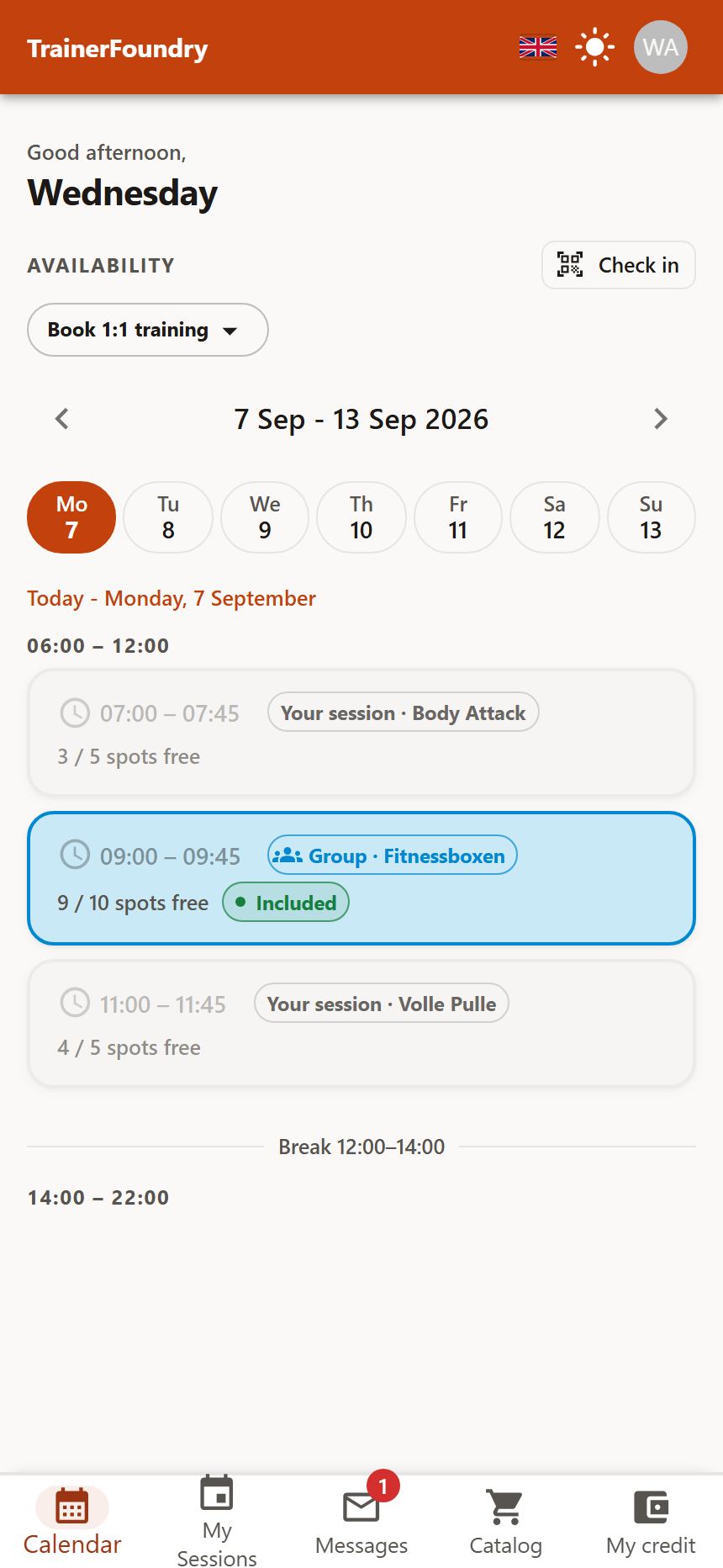
The Book 1:1 training selector doubles as the switch between your training types. The day below shows both: your group classes with name and free spots — "3 / 5 spots free" — and the times you're already taken. Busy times staying visible instead of disappearing is deliberate: the client sees that the slot exists and that someone else was faster — without learning who: another client's own 1:1 booking shows up anonymised, with no name or training type attached.
How last-minute a client can still book is governed by your working hours and minimum lead time — what the client is offered here is exactly what's left over there. There's no upper limit on how far ahead they can book; the week view simply pages forward as far as you like.
My Sessions
The second tab lists the next seven days, each booking as a card with training type, date, time, duration and location.
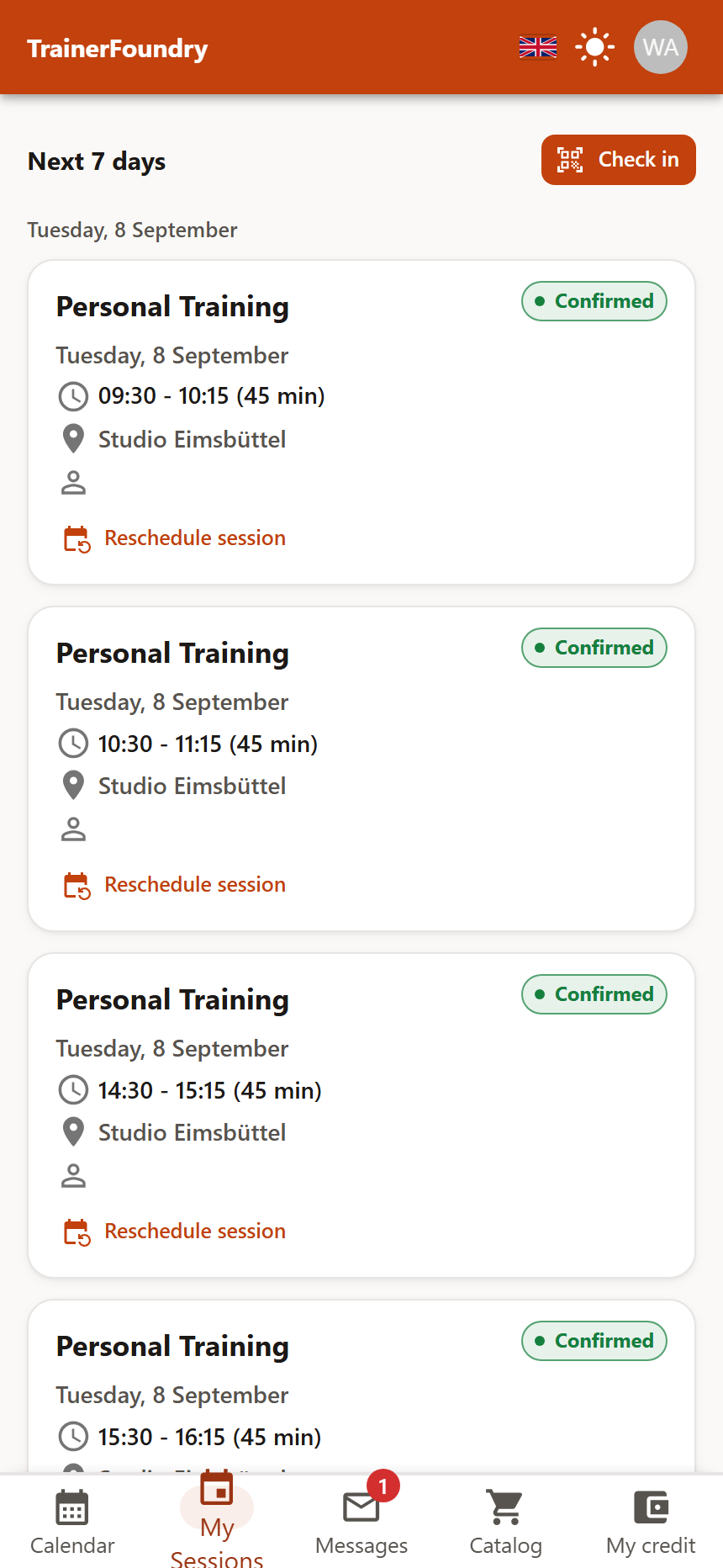
Reschedule session leads back into picking a free slot, and it's free of charge no matter how last-minute — the credit stays attached to the booking either way. The only limit is your own minimum lead time, which decides how close to the new slot a client can still move into it. This action only exists for the client's own one-on-one bookings — a booked group class shows neither Reschedule nor Cancel.
Cancelling is its own, separate action: tapping the card itself — for a confirmed, funded one-on-one booking — opens the cancel dialog with a reason field. Cancel in good time and the credit goes back onto the client's balance; cancel too late under your cancellation policy and the credit stays used up — there's no money fee involved, only the lost credit. View past sessions gets the client to their history.
Catalog: buying
The catalog is your shop window. It shows what you've set up under Services & offers — each training type's duration, and the purchase options with price underneath.
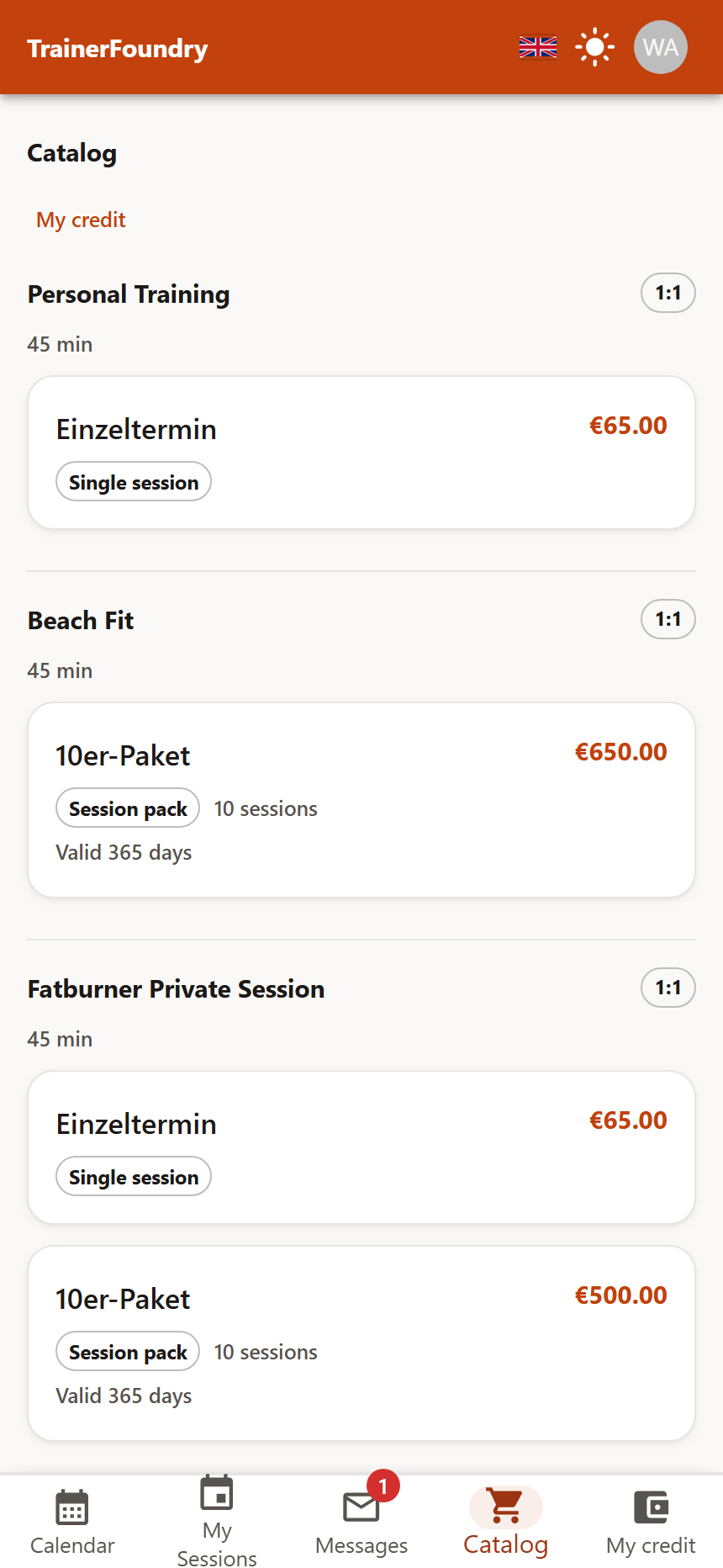
A purchase pays by card right inside the app — no redirect to an outside page — and lands in the client's credit immediately; the invoice for it sits in the app too. Whatever doesn't show up here can't be bought either — an offer you've deactivated stays invisible. If a client says they can't find something, your own catalog is the first place to look.
My credit and invoices
The tab rounds up everything paid for: running memberships, packages with remaining credit, and the invoices that go with them.
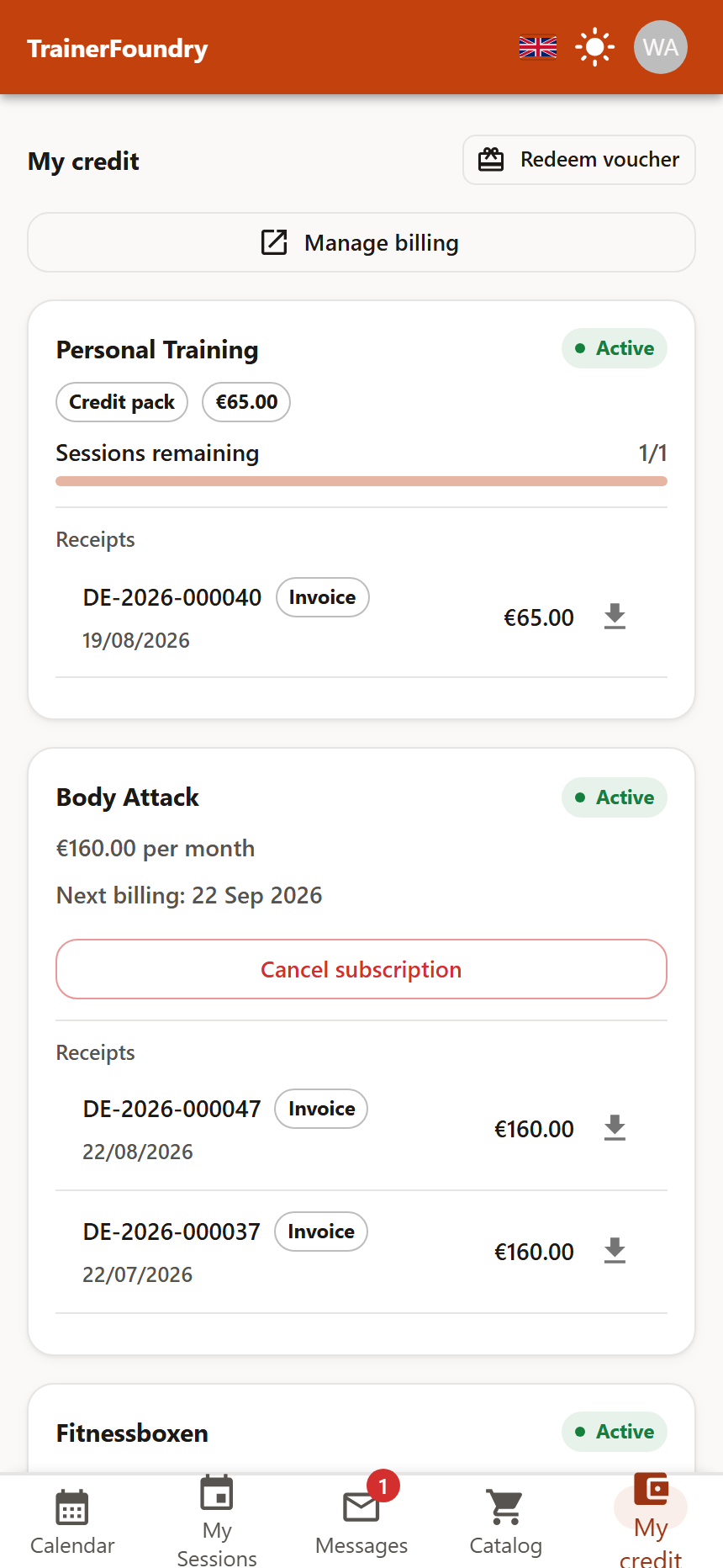
A membership shows price, cycle, the next billing date and its own status badge. Cancelling is self-service: the default is end-of-period, keeping access until the period ends. Where the offer carries a cancellation notice period — standing-slot memberships only — that date can roll past the current period end to the next billing boundary, and the app tells the client one more cycle will be charged before they confirm. "Show advanced options" reveals an immediate option, which only actually goes through within 24 hours of signing up, and only if you've enabled it on that particular offer. Unlike an immediate cancellation you trigger yourself as the trainer — which credits the remaining period rather than refunding it, see Standing bookings & memberships — this client-triggered immediate cancellation really does put the money back on their card: it's the one automatic full refund anywhere in the product. A package shows as a punch-card with remaining units and a validity date — or, once it's no longer active, a status of Used up, Expired or Refunded in place of the remaining count.
Under Invoices in each card sits every invoice and credit note with date and amount; tapping the row downloads the PDF. A separate Invoices section further down catches anything not tied to a membership or package still shown above. These are the same invoices you download under Finance → Payments — so a client never has to ask you for one. Through Manage billing the client also reaches the payment processor's own customer portal, where they can update their card details.
Checking in by QR code
The Check in button opens the camera. The client points it at the QR code you show on your own screen when starting the session — done, the attendance shows up in your roster.
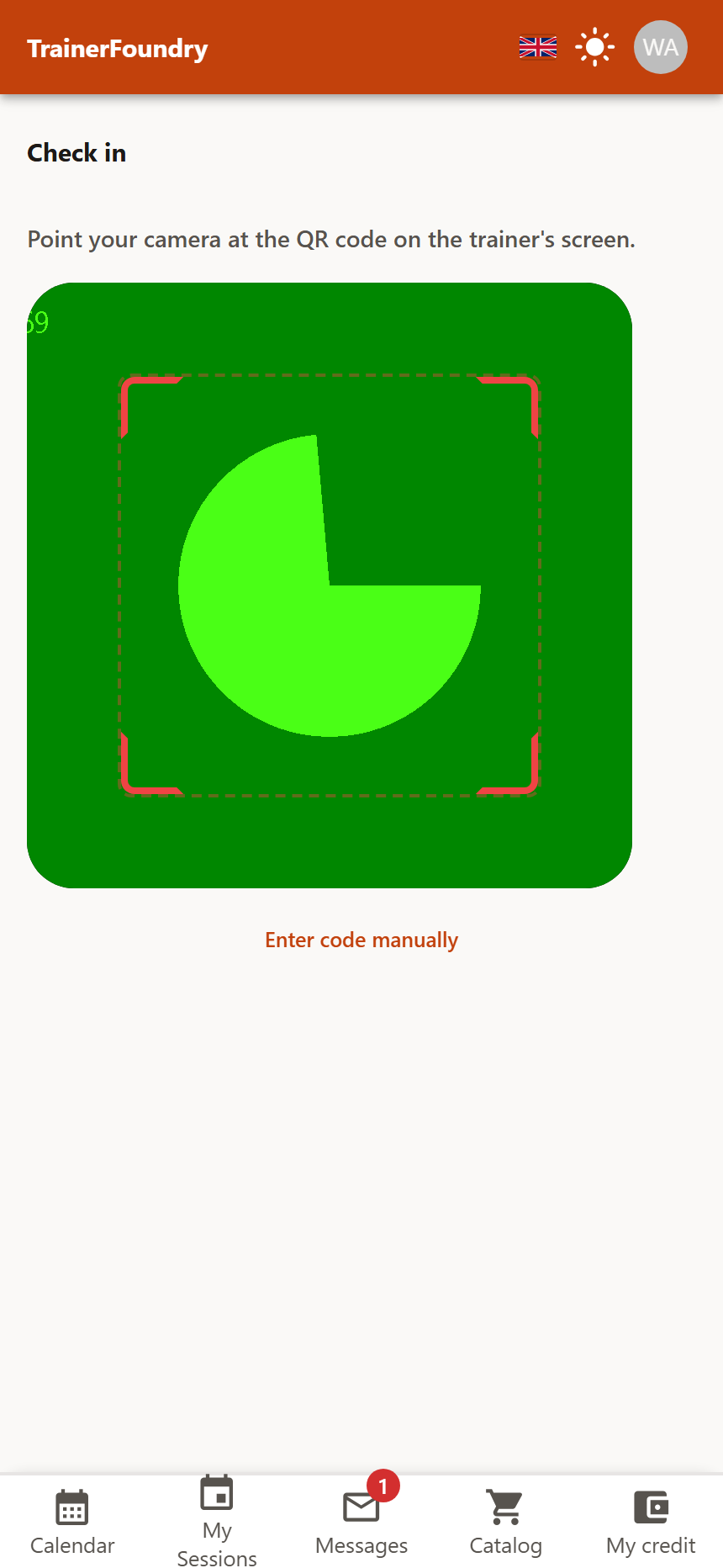
If the camera doesn't work — access denied, too dark, an older device — there's Enter code manually: the client types in the token you read out to them. That's why you see the code both as an image and as text when you start a session. If the camera fails outright (permission denied, no camera found, an insecure connection), the app skips the toggle and shows the manual-entry field straight away.
After checking in, the app briefly confirms it worked — and says so too if the client is running late or had already checked in.
Messages
The middle tab shows the messages from you — the same ones you send under Messages. A count on the icon flags anything unread.
Write to a client and they get a short nudge email with a link into the app — the message text itself isn't in it. There's no push notification to the phone; push doesn't actually arrive at all today. For anything genuinely urgent, the phone stays the reliable option.
One client, several trainers
The same Client App serves every trainer a client trains with — not just you. With a single trainer relationship, a client notices nothing: the app picks it silently on sign-in, with no switcher shown at all. Training with several trainers, a picker asks which one they want on first opening the app — and a "Switch trainer" entry in the profile menu brings that same picker back any time. Switching clears the app's data completely: bookings, credit and messages reload from scratch for the newly chosen trainer, with nothing from the previous one left showing.
What your client can set themselves
Top right sit the same three switches as in your own app: language (German or English), theme (light, dark or following the device) and, behind the initials, the profile with notification settings and sign-out. There, for six event types — reminders before sessions, booking confirmations, cancellation notices, package-expiry warnings, messages from you and offers & promotions — the client switches Email on or off: six toggles of their own, independent of whatever you set on your own Notifications page. A Push section sits below it, but every switch there is greyed out, with a note that push notifications aren't available yet and that email is how you reach the client today.
In the profile, your client can also change their own first name, last name and phone number — that flows straight through to your client profile. The email address isn't offered there: sign-in depends on it, and only you change it, in the client profile.