Communication
Messages
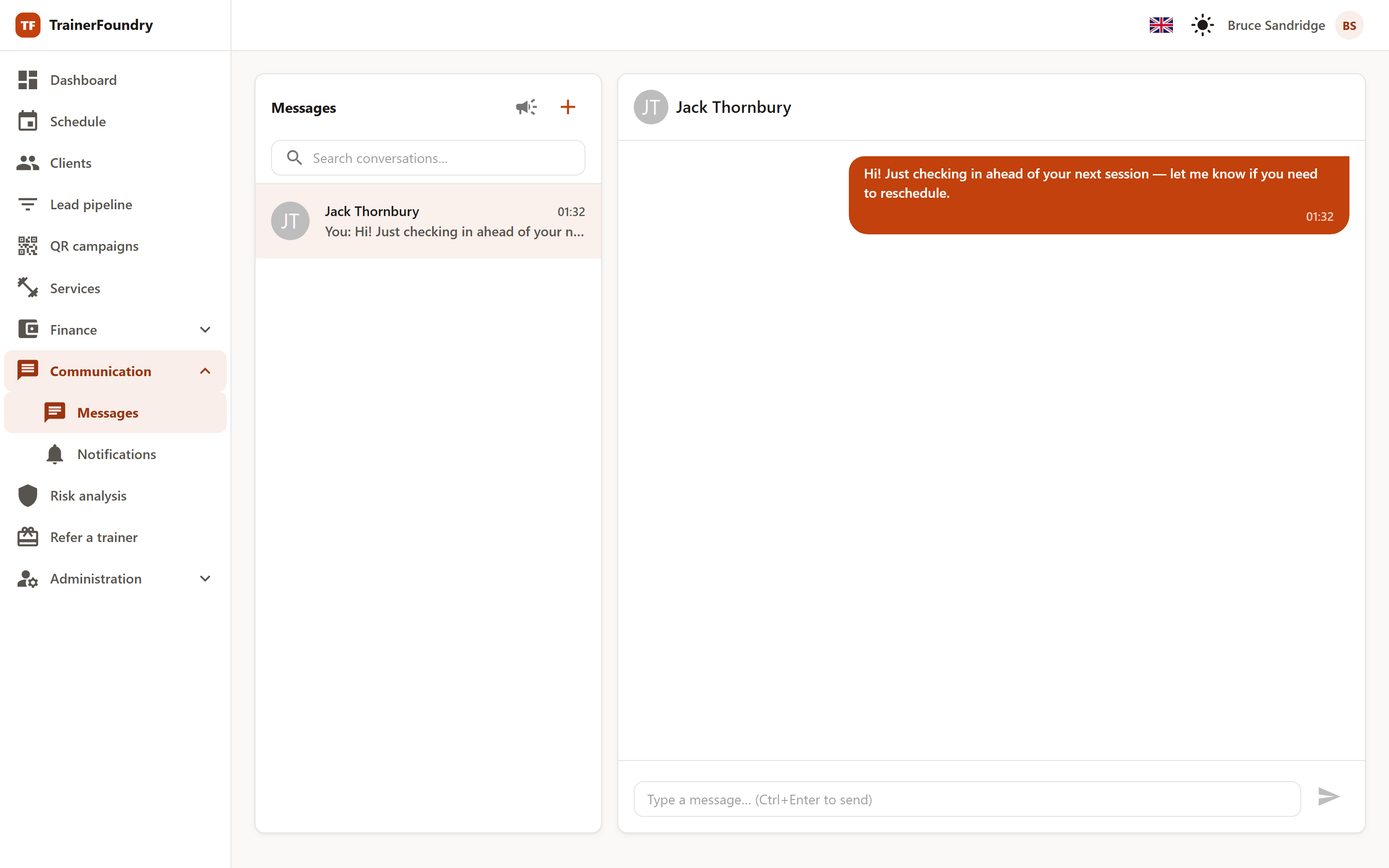
Under Communication → Messages you message your clients directly — the list of conversations on the left, the history with the selected person on the right. Your clients see the same messages in the Client App.
The advantage over WhatsApp or SMS: everything sits on the client's record, not in your personal inbox. Anyone who wants to know four weeks later what you told a client finds it here — and your private number stays private.
The conversation list
On the left is a row per client with their name, their last message and the time. Use the search field to find a specific conversation. There's deliberately no unread badge: since a client can't write anything back through the app (more on that below), there would never be anything for one to show.
Writing a message
Messaging here is one-way today: you write to a client, and they read it in the Client App — but they can't write anything back there. If they want to reply, that happens by phone or email, not through TrainerFoundry.
In an open conversation, type into the input field at the bottom and send. Ctrl + Enter sends too — handy if you're already on the keyboard.
For a first contact with someone you've never messaged before, there's New message: pick the recipient from your client list and write the text. The conversation then exists and continues like any other.
Broadcasts
When the same information goes out to many — the studio is closed on a public holiday, a class time is moving, there's a promotion — use Broadcast. Two recipient groups are available:
- All active clients — inactive ones are left out. Someone who's no longer training doesn't get studio news either.
- Filter by tag — only clients with the tags you choose. This is exactly why it's worth keeping tags tidy: "Rehab", "Monday group class", "Competition prep" become distribution lists here.
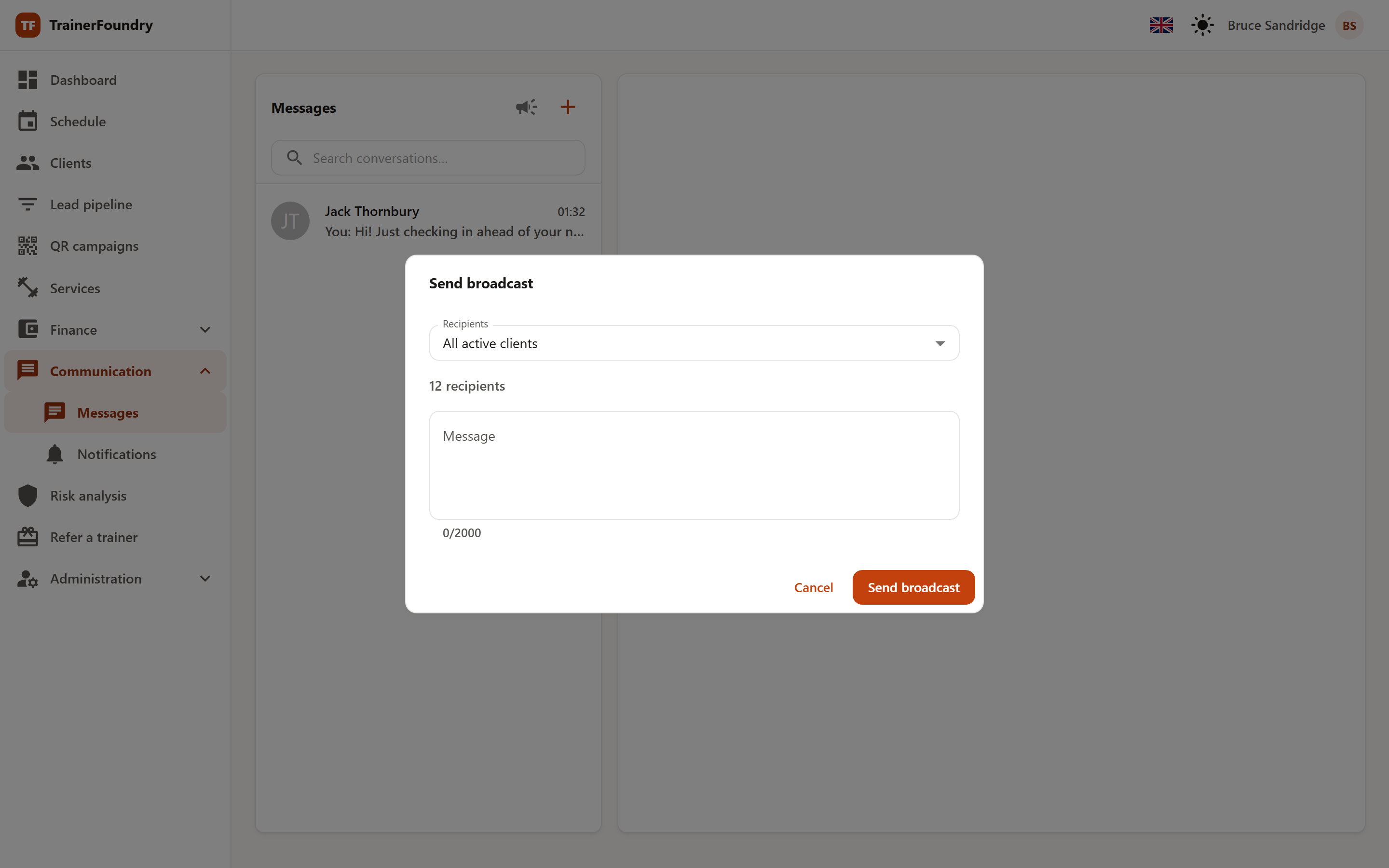
Above the text field, the number of recipients updates as you go. Read the number before you send — it's the only reassurance that your tag filter matches what you mean. The text is capped at 2,000 characters; a counter shows where you stand.
A broadcast is not a group chat: each client gets it as their own message in their own conversation, and recipients never see each other. After sending, TrainerFoundry reports how many clients the message reached.
For a very large recipient group, the group can get too big; the dialog then asks you to narrow it down with a tag filter.
What your clients notice
A client sees your message as soon as they open the Client App — provided they have portal access. Without access, the message sits in TrainerFoundry and never reaches them — so invite them first.
They don't have to happen to check: every message triggers a short nudge email to the client, with a link straight into the app. For a broadcast, each recipient gets their own. The message text itself deliberately isn't in the email — it's read in the app, the email only nudges.
A client can unsubscribe from these at any time, in two ways: in the Client App under settings via Messages from trainer, or directly via the unsubscribe link at the bottom of every one of these emails. The link needs no sign-in — even someone you haven't invited into the app yet can use it to opt out.
Only the client can turn it back on, via the toggle in the app. You can't do it for them — there's no setting on your side for it. Their client profile does show you the opt-out though: Messages from trainer off since …. So you at least know why a message isn't reaching them, even though you can't flip the toggle back yourself. If they opted out before ever getting portal access, the only way back is an invitation into the Client App.
A client without portal access gets the nudge email too, by the way — their link just leads to an app they can't sign in to. So invite them first; only then does the message have a destination.
There's no push notification on the phone for this — push currently isn't delivered at all (see Notifications). For anything truly time-critical — a short-notice cancellation, say — the phone stays your safe bet, or you cancel the session directly in the calendar, since that sends its own notification.