Finance
Outstanding payments
Finance → Outstanding is the list of money still owed to you: every booking and every sale with a payment request out that nobody has settled yet — money your clients owe you, never TrainerFoundry's own subscription bill. One page, one glance — and the right action on every row.
When something lands here
A row appears as soon as a payment request is open — whether from selling an offer or from a session booking that needs to be paid. It disappears the moment the payment comes in, or you record it as paid in cash. If its Stripe payment link expires after 24 hours unpaid instead, the row stays put and carries a "Link expired" chip — the stored link no longer works, so Open payment link drops off the row. For a session booking, TrainerFoundry's daily reminder run can revive an expired request with a fresh link on its next run, bringing it fully current again — but only while the request is still under the three-reminder allowance (manual and automatic combined). Past that allowance, TrainerFoundry stops chasing it automatically — but the request itself isn't gone: the client can still tap Pay now on that booking in their own Client App at any time, which mints a fresh link too. An offer sale gets no automatic revival either way, but it's not a dead end: your own click on Send reminder mints a fresh link for it just the same, on Pending or Expired rows alike. An expired row is therefore never truly final, for either kind of sale.
Once everything is settled, a green message replaces the table: No outstanding payments — all bookings are paid. That's the state you're aiming for.
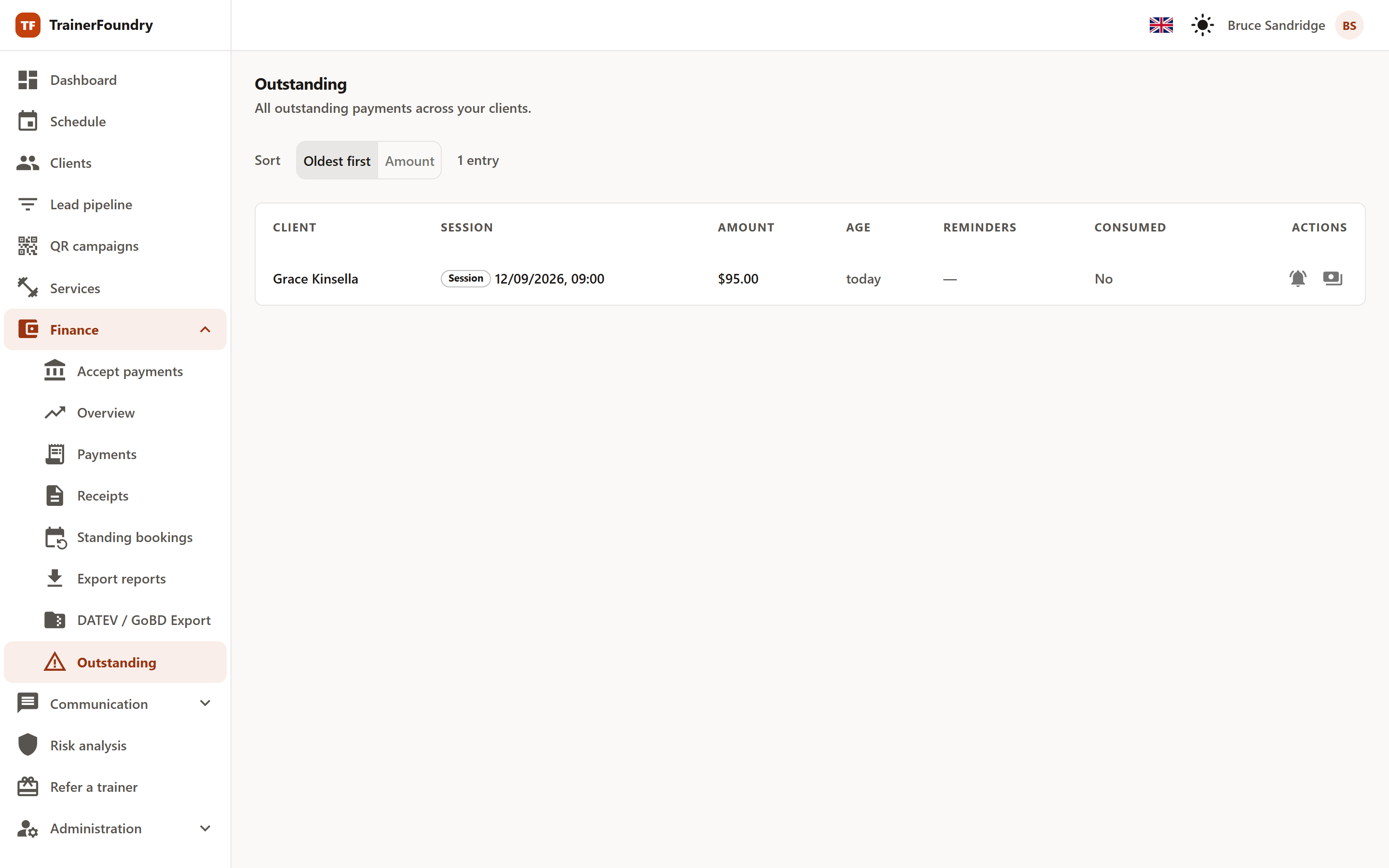
Sorting by age or amount
Two buttons sit above the table. The default is Oldest first — it puts what's been sitting longest at the top, since collecting it only gets harder with every day. Switch to Amount if you'd rather clear the largest items first. Next to it you'll see how many entries are open in total.
Every row carries:
- Client — Who still owes the money.
- Session — What it’s for — a chip says whether it’s a session or an offer; sessions also show the date.
- Amount — The outstanding amount.
- Age — How long the request has been open, in days.
- Reminders — How many times you’ve already followed up — manual and automatic combined.
- Consumed — Whether the session has already started — its start time is in the past, or it’s already marked Completed.
Rows marked Consumed are highlighted, and deliberately so: you've already delivered the service without being paid for it. These cases deserve to be cleared first.
Reminders
Send reminder emails the client the payment link again. The counter in the Reminders column keeps count — so you can tell at a glance whether you've already asked nicely three times and it's time for a conversation instead.
The counter also works as a memory aid over weeks: without it, you wouldn't know, looking at an item that's three weeks old, whether anything has gone out at all.
You don't have to trigger every reminder yourself: once a session booking is overdue — the session has already started, or the payment request has been open for more than 24 hours — TrainerFoundry follows up automatically by email in the background, at most once a day and at most three times in total. These automatic reminders count towards the same column; your own click on Send reminder always counts too, independently, even once the automatic limit of three is already reached. There's no push notification for this — email is the only channel.
Of the rows on this list, only session bookings get that automatic follow-up. An offer sale gets no automatic reminder at all — only your own click on Send reminder chases it.
Recording a payment or opening the link
Two more actions sit at the right of the row, next to the reminder:
- Open payment link — opens the payment page in a new tab. Handy when the client is standing next to you and you want to finish the payment together. This action only appears when the booking actually has an online payment link attached; a booking set up for cash has none.
- Mark as cash paid — the client handed you the money. The booking counts as settled and disappears from the list. This action only exists for rows with a session attached.
If you don't record a cash payment afterwards, the item stays in the list and is also missing from your Finance overview — both are wrong at that point. The click is worth it.
You'll also see individual open items where they arise: as an Unpaid note on the session card on the Dashboard, in the ledger of the relevant Client, and with status Pending in the transaction journal. Outstanding payments is the collected view over all of it.