Management
Running a session
For the moment in the studio there's a dedicated screen: the session view. Here you check off who's there, add spontaneous attendees and end the session — all on one page, usable on a phone too.
Opening the session
In the Calendar, click the session and then Start session. For group classes, the Attendance button on the dashboard leads here too. If the session is already running, the button reads Resume session — so you can leave the screen partway through and come back later.
Up top, a progress indicator shows where the session stands: Scheduled → In progress → Completed. Beside it, a running count shows how many of the booked clients have already checked in.
The roster
Every booked person gets a row in the list, and every row has three buttons:
- Present — The client took part.
- Late — Took part, but arrived late — counts as attended and records the fact.
- Absent — Didn't show. If the session was booked with a credit from a package or a membership with a limited number of sessions, that credit was already consumed at booking and stays forfeited — and this exact marking unlocks Return credit for that person once the session is Completed.
Next to it there's room for a short note on the session — an injury, say, or a bit of training progress.
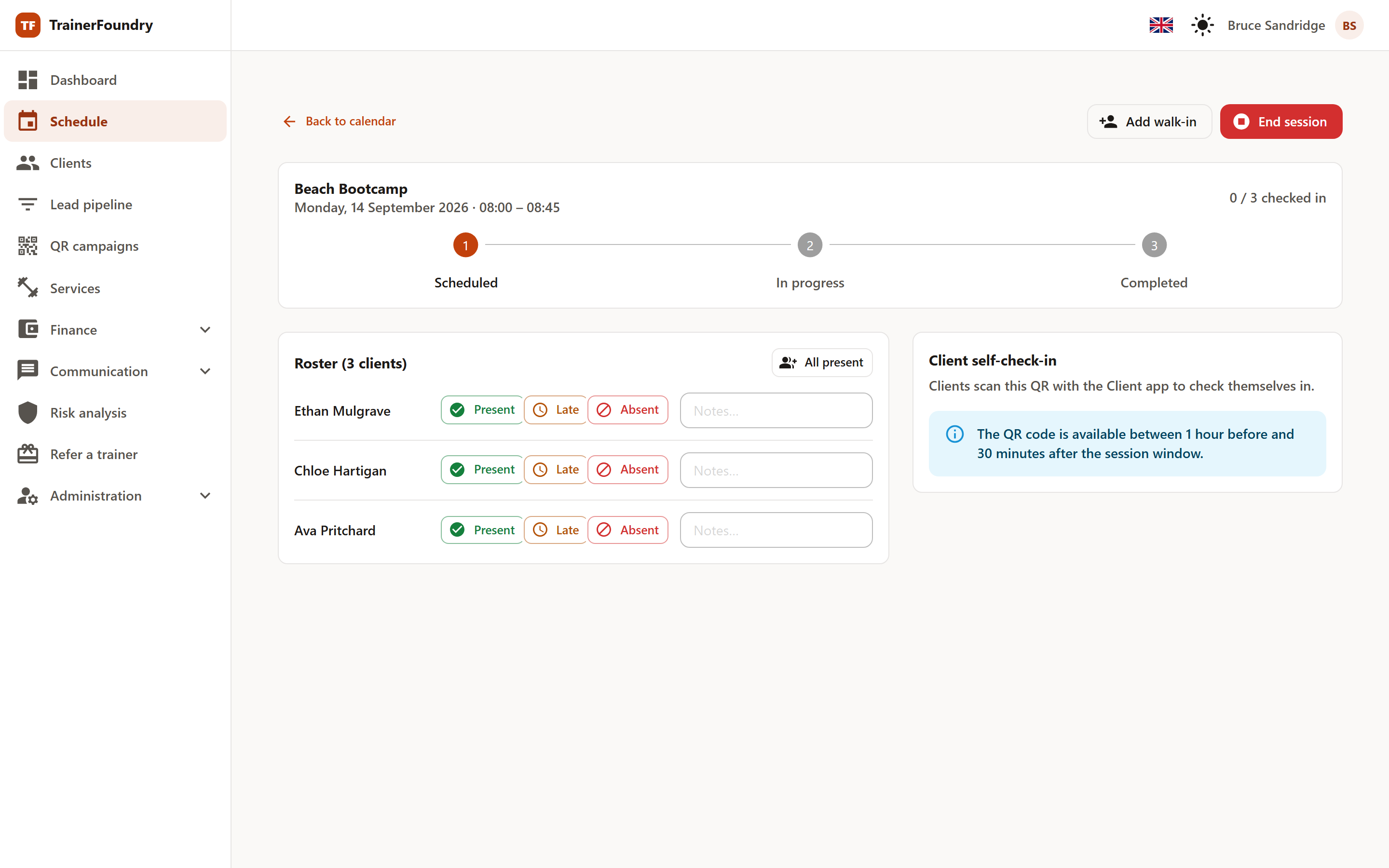
Your picks are only queued at first — above the list you can see how many changes are pending. Only Submit check-in commits them, so you can work through the room calmly and save once at the end. All present sets every row that doesn't already have a confirmed status to present in one go — a check-in that's already been recorded is never overwritten.
Each row also shows where its check-in came from:
- Trainer — You set the attendance yourself in the roster.
- QR self-check-in — The client checked themselves in via the QR code.
- Walk-in — The person was added only during the session.
- Override — A recorded check-in was changed afterwards — by you by hand, or automatically: anyone still unchecked gets marked Absent when you end the session, or on its own about 15 minutes after the session's scheduled end if nobody ends it first.
Self-check-in by QR code
Next to the roster sits a QR code your clients scan with the Client App to check themselves in — handy for larger groups, since you don't have to tick off each person yourself. Put it up at the entrance, or just hold up the tablet.
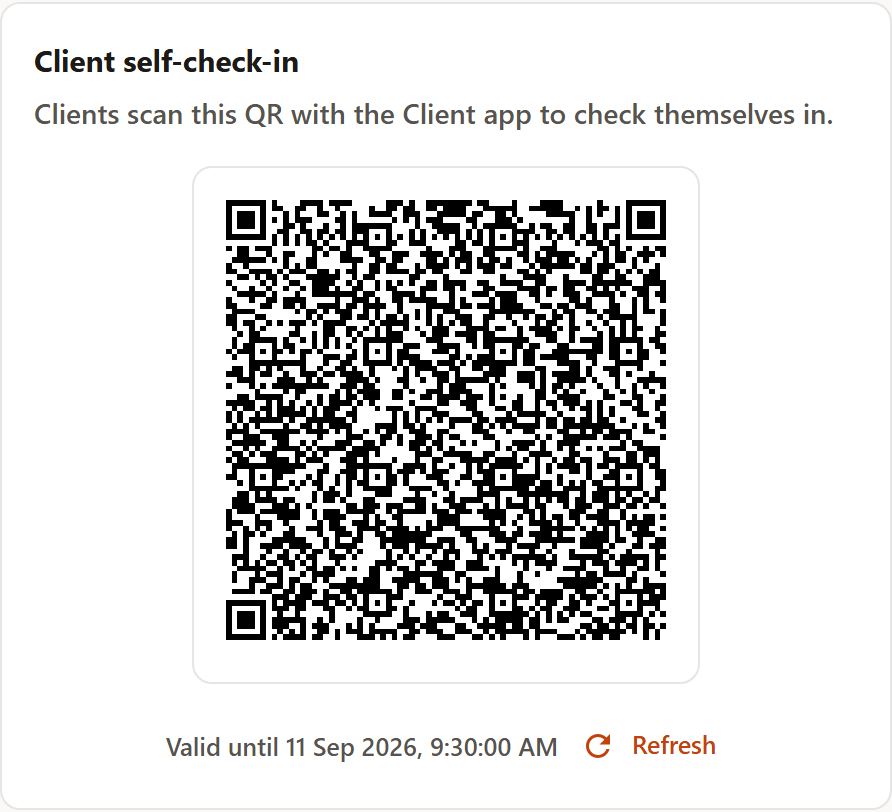
The panel itself is only available from an hour before the session starts until 30 minutes after it ends — outside that stretch, a message shows in its place instead. Within that stretch, though, a scan only actually succeeds in a narrower window: 15 minutes before the session starts to 30 minutes after it starts — that's the cut-off "Valid until" names. There's one code per session; scanning it again, or clicking Refresh, doesn't generate a new one while the current one is still valid — you just get the same code back. Anyone who checks themselves in shows up in your roster as already done; you can still change the status yourself if you need to.
Taking walk-ins
If someone joins on the spot, add them to the running session via Add walk-in. First you decide who it is:
- Existing client — you pick the person from your client list.
- New person — you capture name and contact right here, then choose whether they should land only as a lead in your pipeline, or be booked straight into this session.
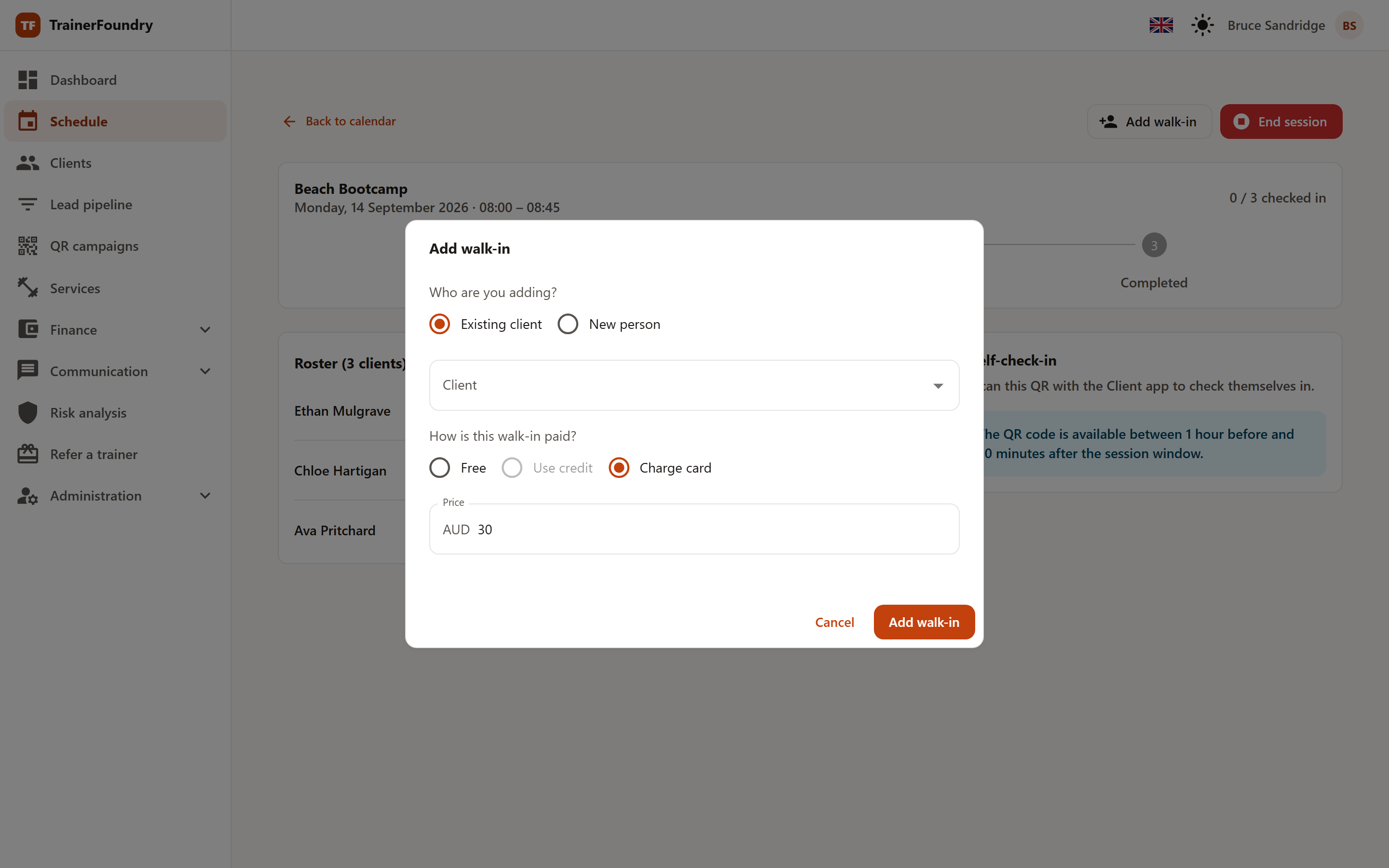
For an existing client you then settle the billing — Free, Use credit (one unit from a package or a membership) or Charge card. For a new person booked straight in, only Free and Charge card are on offer — Use credit doesn't apply, since a brand-new person holds no package or membership yet. Charging a card shows a QR code to pay, and the payment link also goes to the client by email.
Two cases you may run into: if the training type has no active Single session offer, "Charge card" isn't available — choose Free or Use credit instead, or create an active Single session offer for the training type under Services & offers first. And if a group class is fully booked, walk-in bookings are blocked so capacity holds — capture as lead is unaffected, since it never books anyone into the session.
Returning credit
Anyone marked absent who booked the session with a credit from a package or a membership with a limited number of sessions forfeits that credit. Return credit is reachable for that exact person once the session reaches Completed — whether you end it yourself or TrainerFoundry closes it automatically because nobody did — as well as on a session that's itself marked no-show (including the dashboard's own 1:1 No-show quick action). In both cases the button only appears for those people — anyone booked for free, paid directly, not yet paid or with an unlimited membership lost no credit that could be returned. If you want to be lenient in any of those cases, open the appointment in the Calendar and choose Return credit for the affected person; the credit goes back onto the client's balance. Marking someone absent on this screen's roster is enough on its own — no extra step is needed, the session just has to complete first.
When a client cancels too late, what happens depends on how the session was booked:
- With a credit from a package or a membership with a limited number of sessions — the credit is forfeited. You can waive that with Return credit once TrainerFoundry has processed the past session — at the latest about a day after it. If you try earlier, you'll see a note that it isn't possible yet. Afterwards the credit goes back onto the client's balance. On a cancelled session the button only appears for the people whose package or membership credit was actually forfeited — if you cancel yourself, your clients get their credits back anyway.
- Paid directly — the payment is forfeited. Return credit doesn't appear here, because no credit was booked. If you want to be lenient, refund the payment instead (see Payments, section Refunding).
- Not yet paid, or with an unlimited membership — the client loses nothing by cancelling late, so there is nothing to waive.
A reason is required (at least 5 characters, up to 500) and is logged together with the time and the client. That's deliberate: goodwill decisions stay traceable — for you and for the client. Each credit can only be returned once.
Unpaid attendees
If money is still owed on a booking, TrainerFoundry points it out the moment you open the session. You can still run the session as normal — the note is a reminder, not a block. You request the payment separately, either right on the session card on the dashboard or collected under Finance → Outstanding.
Ending the session
To finish, End session. A confirmation first tells you how many clients are still without a check-in — these get marked as Absent when you end it. Check the number before confirming. If anything's still unpaid, that gets mentioned once more here too. You don't have to be the one to close it, either: leave a session running and TrainerFoundry ends it for you about 15 minutes after its scheduled end time, marking anyone still unchecked as Absent the same way.
After that, the session shows as Completed: attendance is locked in, and the session takes its place in your reports. It doesn't show up in the client's own ledger, though — that view lists memberships, packages and payments, never individual sessions. Credit was already consumed back when each attendee was booked, not at this final step — completing the session doesn't touch it again.