Finance
Standing bookings & memberships
Finance → Standing bookings is the overview of everything billed on a recurring basis: every membership a client holds with you, running or ended, with its cadence, status and next billing date. This is always the client paying you — never to be confused with your own TrainerFoundry subscription, covered in Subscription & invoices.
The three shapes
Which shape a membership has is decided when you create the offer, under Services & offers. The Type column here records it:
- Fixed slots — Fixed slots on a weekly grid, e.g. "Monday 7am and Friday 5pm". TrainerFoundry creates the matching sessions in your calendar automatically once the payment has come in.
- Flexible — A fixed number of sessions per billing cycle, booked freely. No sessions are created automatically — the client books them.
- Unlimited — Access with no quota, like a studio flat rate. Also no automatically created sessions.
The difference is felt day to day: only Fixed slots touches your calendar automatically. The other two shapes only give the client either a running credit or a right of access.
The overview
The table shows Client, Product, the recurring slots, Status, next billing, cadence (always "Monthly" today) and Type. You can filter by client, product and status.
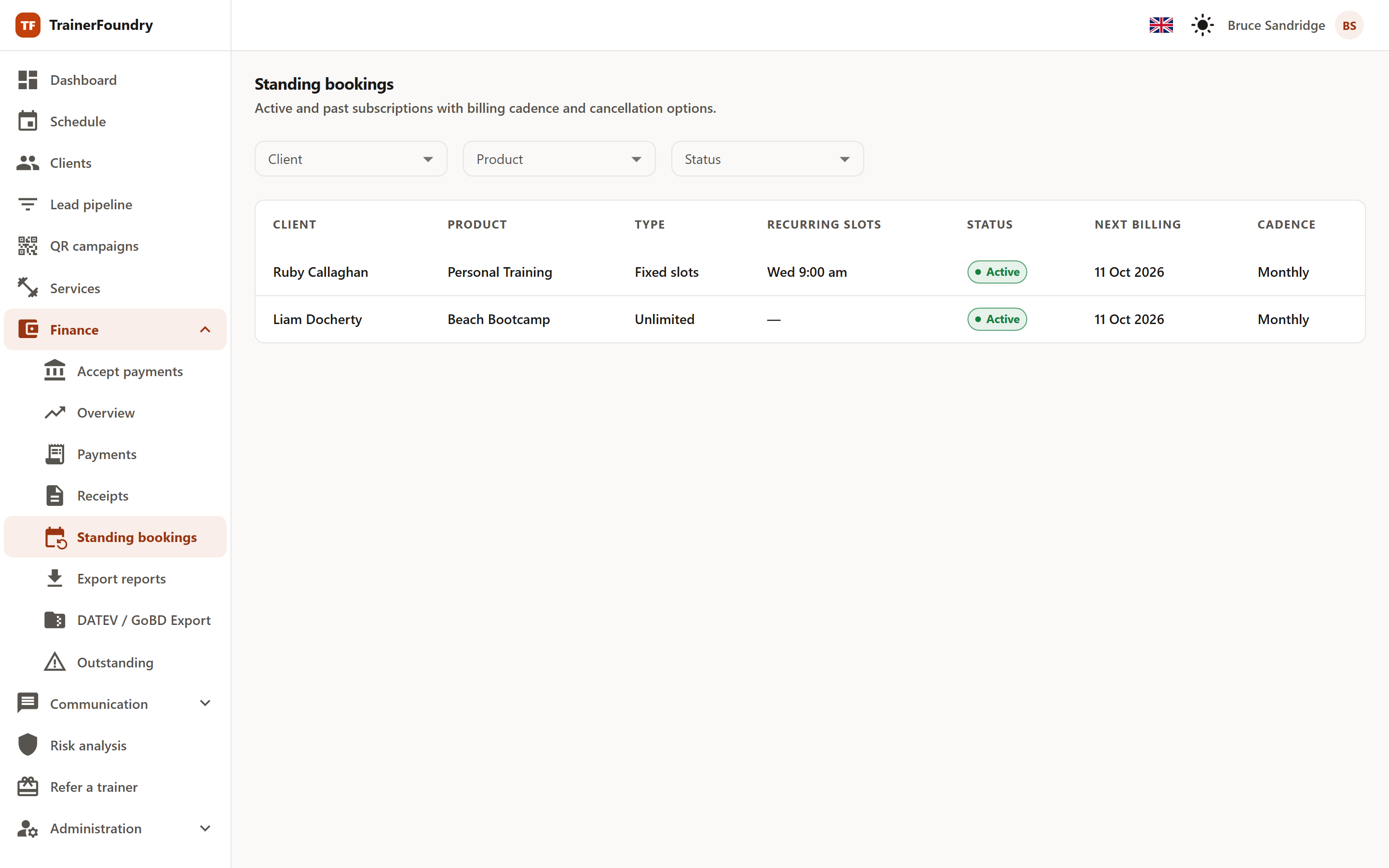
The status tells you where things stand:
- Trial — An agreed trial period is running; nothing is charged yet.
- Active — Everything running normally — billed on schedule.
- Past due — A charge failed. Stripe retries; if nothing goes through, the membership ends.
- Cancelled — Ended. Nothing more is billed.
- Incomplete — Checkout stalled, usually because the first payment was never confirmed.
- Payment failed — The first payment was never completed — Stripe auto-expires the unpaid invoice after about 23 hours. The membership never went active.
An extra flag, Cancelling at period end, marks memberships that are already cancelled but still run until the end of the paid period. They're still active — just for the last time.
Past due is worth a quick look: it's usually an expired card behind it. A short nudge to the client is more effective here than any reminder later.
Fixed slots in detail
Clicking a row opens the detail view on the right. It names the start and end of the current billing period, the number of slots, and — if set on the offer — the cancellation notice, in hours.
For Fixed slots memberships, the list of recurring slots sits underneath, with day of week, time and duration. From that list, TrainerFoundry creates the actual sessions in your calendar for each billing period — nothing to enter by hand, and the client is booked in automatically. That happens once the payment for the period has come in — not at sign-up. A client who abandons the sign-up leaves no sessions in your calendar.
What that looks like depends on the training type: an individual session creates its own session per slot; a group class instead adds the client to the roster of the class that's already scheduled.
Fixed slots not booked
Between sign-up and payment, a slot may have been taken in the meantime — and the same goes for every renewal, when the next period's sessions are booked after its payment. This can happen because you entered another session at that time yourself, because the class is full, because no class takes place at that time, or because the client is already on that class. TrainerFoundry never double-books such a slot. The client gets a message about it and, as a rule, a credit for one session to book another time themselves instead – unless the payment for that period has already been refunded. Nothing is refunded automatically.
Below the overview, the section Fixed slots not booked lists every such slot with its time, client, membership and reason. The Credit column shows whether the client already has their credit (Credit issued) or whether it is still pending and will be added automatically (Credit pending). No credit means nothing was left to credit for that slot – for example because the payment for that period had already been refunded. The paid sessions an immediate cancellation takes away are listed here too, with the reason Membership ended immediately (see "Cancelling"). The same list, narrowed to one client, is on that client's standing-bookings page.
Cancelling
At the bottom of the detail view sits Cancel subscription. The dialog asks one question — when the cancellation takes effect:
- At the end of the current period — the default. The paid period runs its course, then nothing more is charged — unless the offer has a cancellation notice that reaches past the period end, in which case at least one more cycle is billed first; see "Memberships with a notice period" below. No refund, because nothing already delivered is being taken away.
- Immediately — the membership ends on the spot. Stripe doesn't prorate anything. Instead, for every session of the current period that was already paid for and now won't take place, the client gets a credit for one session to book another time themselves, and a message about it. Those sessions then appear under "Fixed slots not booked" with the reason Membership ended immediately. None of this is a refund to the client's card. If you actually want to put money back on the client's card, do that from Finance → Payments, where the membership charge is listed and refundable; such a refund first takes the value of the credits the client hasn't used yet. TrainerFoundry doesn't refund the card automatically as part of this cancel. (The one path that refunds automatically is the client's own 24-hour cool-off cancel, covered under "What the client sees" below — that one really does refund their card in full.) This immediate option is tied to a permission — or to the subscription being less than 24 hours old; only past that window does the permission become mandatory. Without either, the dialog only offers end-of-period cancellation and says so. The dialog also reports how many future sessions it cancelled — see "What happens to sessions" below.
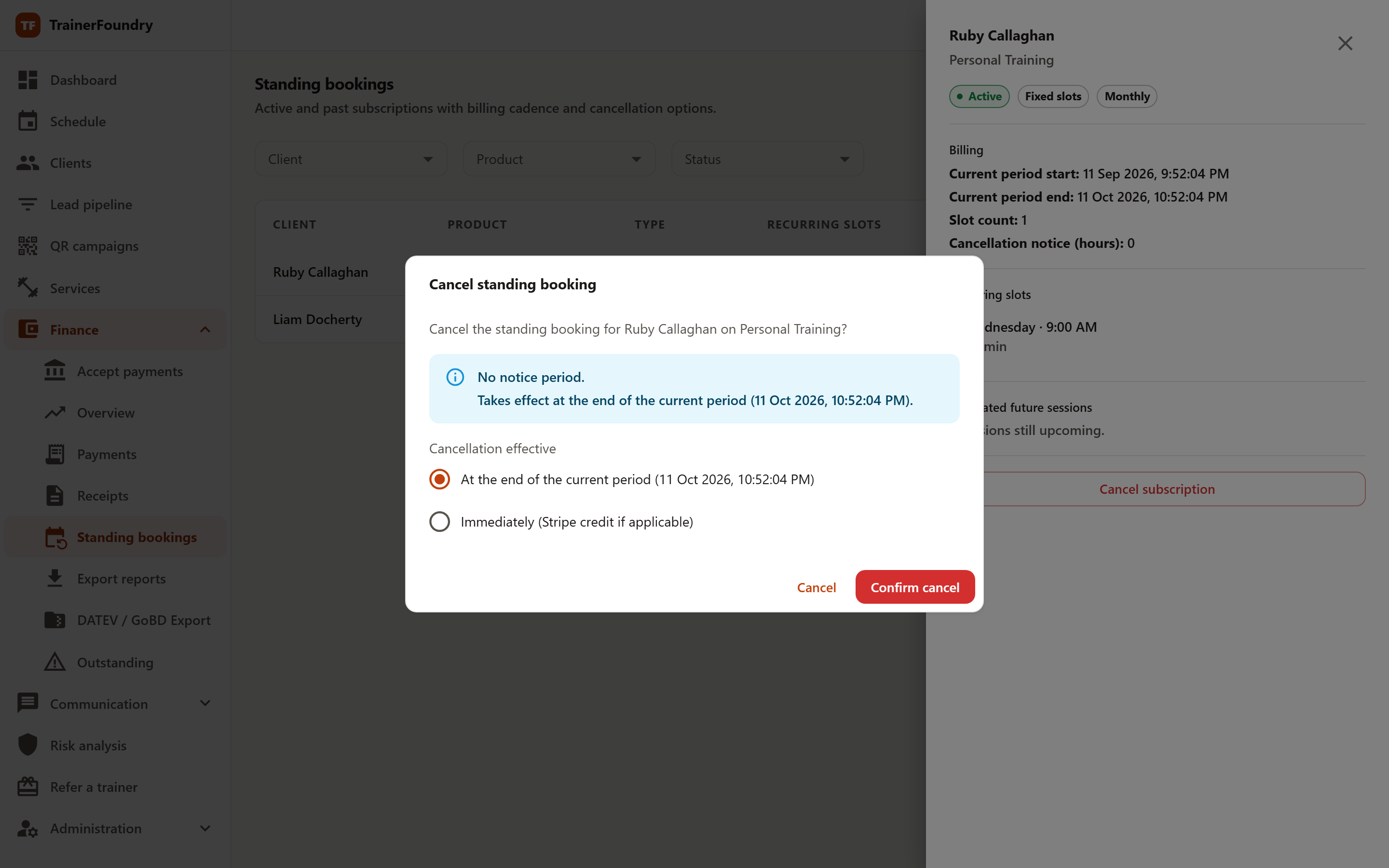
After you confirm, the dialog tells you the date the cancellation takes effect. In the overview the row then either switches to Cancelled or carries the Cancelling at period end flag until then.
Memberships with a notice period
If a membership offer has a cancellation notice set, the cancel dialog now factors in the notice period wherever you cancel from — the client profile just as much as this Standing bookings overview — and shows you exactly which date the cancellation actually lands on. Even so, the client profile — the Ledger tab, section Memberships — stays the better place to start: it's the only place that cancels all three membership shapes in one spot, including memberships still in their trial period or past due.
That's more than cosmetic. If the notice reaches past the current period end, the cancellation date rolls to the next billing boundary — so the client is charged for at least one more period. Both cancel dialogs say so explicitly, so you can tell the client before you confirm rather than explain it afterwards.
The cancel dialog on the client profile also handles all three shapes. The route via the Standing bookings overview only exists for Fixed slots memberships; for Flexible and Unlimited, the detail view there is read-only. The client-profile panel now lists Active, Trial and Past-due memberships — not just Active ones — so any of those three states can be cancelled there, with the notice math applied, for all three shapes. An immediate cancel cancels the client's future sessions the same way whichever route you use — the client profile and the Standing bookings overview behave identically there now (more on that below). Hence the simple rule of thumb: overview and monitoring live in Standing bookings, cancelling happens on the client profile — that's where every shape comes together in one place. New memberships, meanwhile, are sold the same way as any other offer — via Sell offer on the client's profile.
What happens to sessions
On a cancellation at period end, the sessions already created for the current period stay — the client has paid for them and can still attend.
On an immediate cancellation via the client profile, TrainerFoundry tidies up instead: future individual sessions from the membership are cancelled, and the client is removed from any group class roster — the class itself keeps running for everyone else. If you added another client to such an individual session, it goes ahead for them; only the membership's client is taken off it. Sessions already underway or in the past are left untouched. For every cancelled session that was already paid for, the client gets a credit for one session.
The same immediate option offered from the Standing bookings overview now works the same way: future sessions from the membership are cancelled there too, and the client is dropped from any group class roster exactly as above. Cancelling at period end — from either route — still leaves every already-created session standing, since the client has paid for them.
What the client sees
In the Client App, a membership shows up as a card on My credit, with its own status label, the price per cycle, the next billing date (or "Access until" once a cancellation is scheduled), and any invoices already issued for it attached right there. There's no pause — a client either keeps a membership running or cancels it.
Clients can cancel their own membership too: end-of-period by default, or "Show advanced options" reveals an immediate option. Immediate only actually goes through inside a 24-hour window right after signing up, and only if you've enabled it on that particular offer — outside that window the app explains that end-of-period cancellation is still available. Unlike the immediate cancel available to you as the trainer, this one really does put money back on the client's card: Stripe refunds the full charge automatically, and any remaining credit for the cancelled period is dropped along with it. A payment still processing offers "Complete payment" into Stripe's own portal; a payment that failed outright and can no longer be retried offers "Subscribe again" instead, since an expired Stripe subscription can't simply be paid off later.