Finance
Exporting reports
Finance → Export reports gets numbers out of TrainerFoundry — as a CSV to keep working on in a spreadsheet or to hand to someone.
The boundary with its neighbouring page is simple: for your own overview, the Finance overview is enough. Reports are for everything else: a list you need outside the app.
Payments and refunds aren't here: they're in the payments CSV export under Finance — the one place for payment data, gross, with payment method and the number of the Stripe invoice or credit note, for your bookkeeper or tax adviser. There's no DATEV / GoBD export at the moment.
The three report types
- Revenue summary — Every payment that actually came in during the period — one row per transaction, with the client's name. A still-outstanding, cancelled or expired payment request doesn't count; that belongs on the Outstanding page.
- Session log — Every session with its status. The client column carries their internal ID, not their name. Narrow it to one session status, e.g. only "No-show".
- Client list — Your clients with contact details. Choose active, inactive or all — "active" means at least one Completed session in the last 90 days. The only type with no date range.
All three produce real data rows. For the Revenue summary, only payments that actually came in count — a still-outstanding, cancelled or expired payment request never shows up, even though its amount looks like a real payment. The CSV carries the client's name alongside the client ID.
Creating a report
Generate report at the top right opens the dialog. You pick the type first — a short explanation of what the report contains appears underneath — then the period. There's no format choice: every report is generated as CSV.
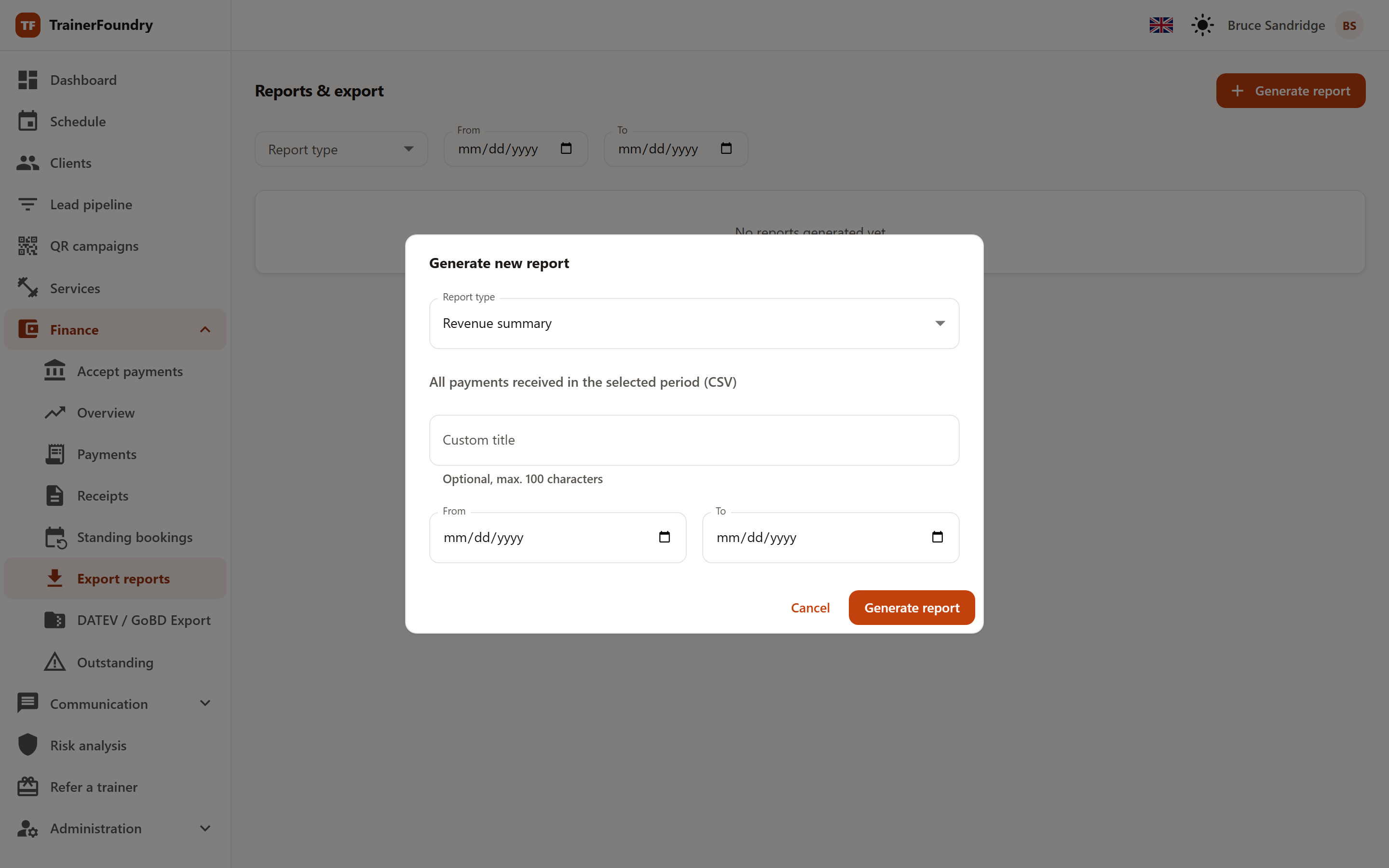
The fields below change with the chosen type: the revenue summary shows only From/To, the session log adds session status, and the client list shows only status (active/inactive/all) — the only type with no date range at all.
The period is already filled in when the dialog opens: from the first of the current month to today. From and To are calendar days where your business is, in the time zone from your settings, and both days count. Both fields are required. When you click "Generate report", the dialog checks the period: neither field may be empty, "From" must not be after "To", and the span must not exceed 1825 days (about 5 years) — five full calendar years with a leap day are 1826 days, one day too many. If something's off, no report is generated; instead a message appears under the field it concerns: an empty date, or one outside the years 2000 to 2100, under its own field; a "From" after "To" or a span that's too long under "To".
A custom title is optional: leave it blank and the report simply takes its type's name in your interface language (for example "Revenue summary"); type something of your own instead — say "Q1 revenue for accountant" — and it's easier to find in the list later than the fourth report named the same generic thing.
Status
The file is put together inside that same request: the success toast on submit says the report is ready to download, not that you'll be notified later. The row in the list already shows its final status by the time the dialog closes.
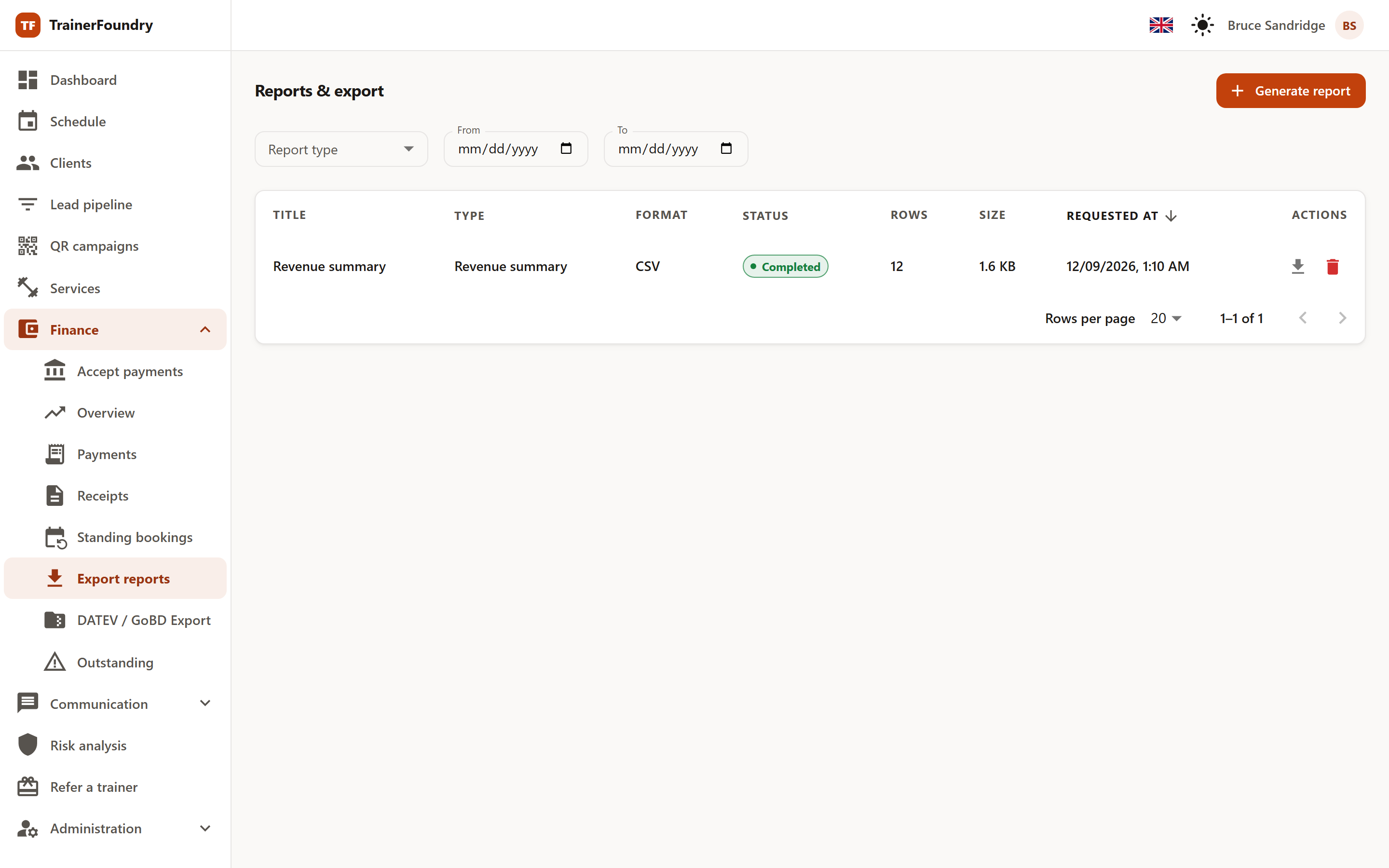
Every job in the list carries a title, type, format, status, row count, size and the date it was requested. A row's status is one of:
- Queued — The job has been accepted and is waiting to be generated.
- Processing — The file is being put together right now.
- Completed — The file is ready to download.
- Failed — Generation was aborted. Just request the report again.
- Expired — The file was cleaned up after seven days. The entry stays; the file is gone.
Queued and Processing exist as states in the system, but you will not normally see a row sit in either one — generation happens inline while you wait for the dialog to close, so the row is already Completed or Failed the moment it appears in the list.
Downloading and cleaning up
Download only appears on rows in Completed status. The file stays downloadable for seven days. Worth knowing: nothing sweeps through and flips the row to Expired on its own once that time is up — the row keeps reading Completed in the list until someone actually tries to download it past the seven days, and only then does it flip and the file get cleaned up. That's not a loss either way — just request the report again if you need it, the underlying data is still there. Still, save any file you need permanently outside the app.
An older report generated as PDF before this change stays in the list and still downloads — only a new report can no longer be one.
Delete clears an entry away. It's available as soon as the report is no longer queued or being generated — so a job that's still running can't be removed mid-work.
If the list gets cluttered, narrow it down with the filters for report type and period. You can sort by clicking the Type, Status or Requested at column headers — the others aren't sortable; by default the most recently created reports sit on top.