Management
Services & offers
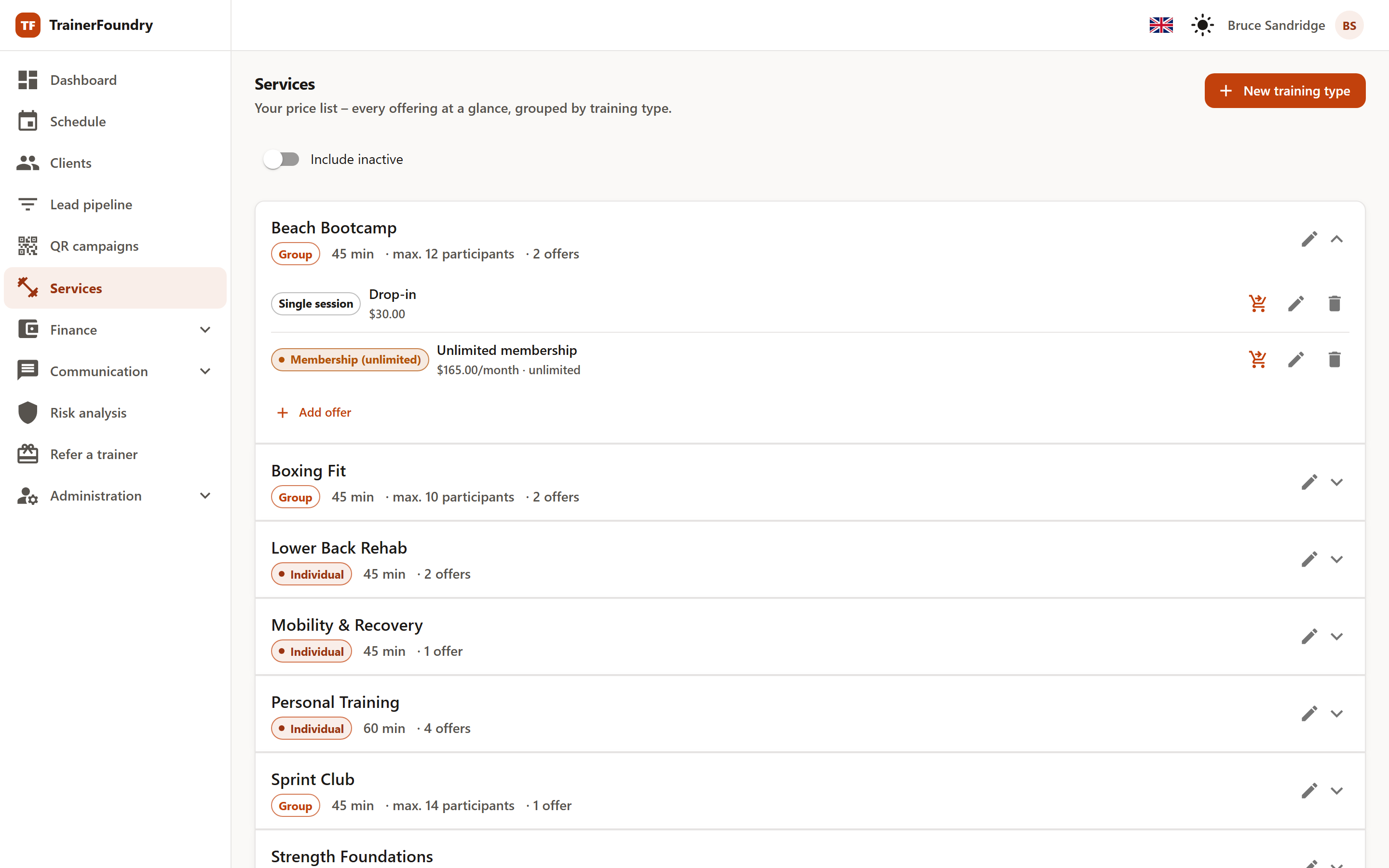
Under Services in the left-hand navigation you maintain your price list: every offering at a glance, grouped by training type. This is where you decide what you train and how clients pay for it — before you can sell anything or put it on the calendar.
The basic idea: training type and offer
TrainerFoundry deliberately separates two things: what is trained and how it's paid for.
- A training type describes the training itself — for example "1:1 strength training" or "Back-fitness class". It sets the name, description, session duration and cancellation window, and determines whether it's an individual or a group session. A training type has no price.
- An offer is a way for a client to pay for that training type — say, as a single session, as a 10-pack or as a monthly membership. The offer carries the price.
A training type can have several offers, which share the same calendar and the same bookings. So you might offer your "1:1 strength training" as a single session and as a discounted 10-pack and as a monthly membership — three offers, one training type. There's only one thing that matters: without at least one offer, a training type is not sellable.
Creating a new training type
Click New training type at the top right. A wizard walks you through the creation in three steps:
- 1 Kind — choose between One-to-one training and Group session (a class with several participants). This choice can't be changed later.
- 2 Details — name, an optional description and the session duration. For a group session you also set the maximum number of participants and can set up a recurring class schedule right away. Create & continue creates the training type.
- 3 Offers — attach one or more offers to the new training type right away. You can also finish the wizard without an offer and add one later — until then, the training type isn't sellable.
Creating offers
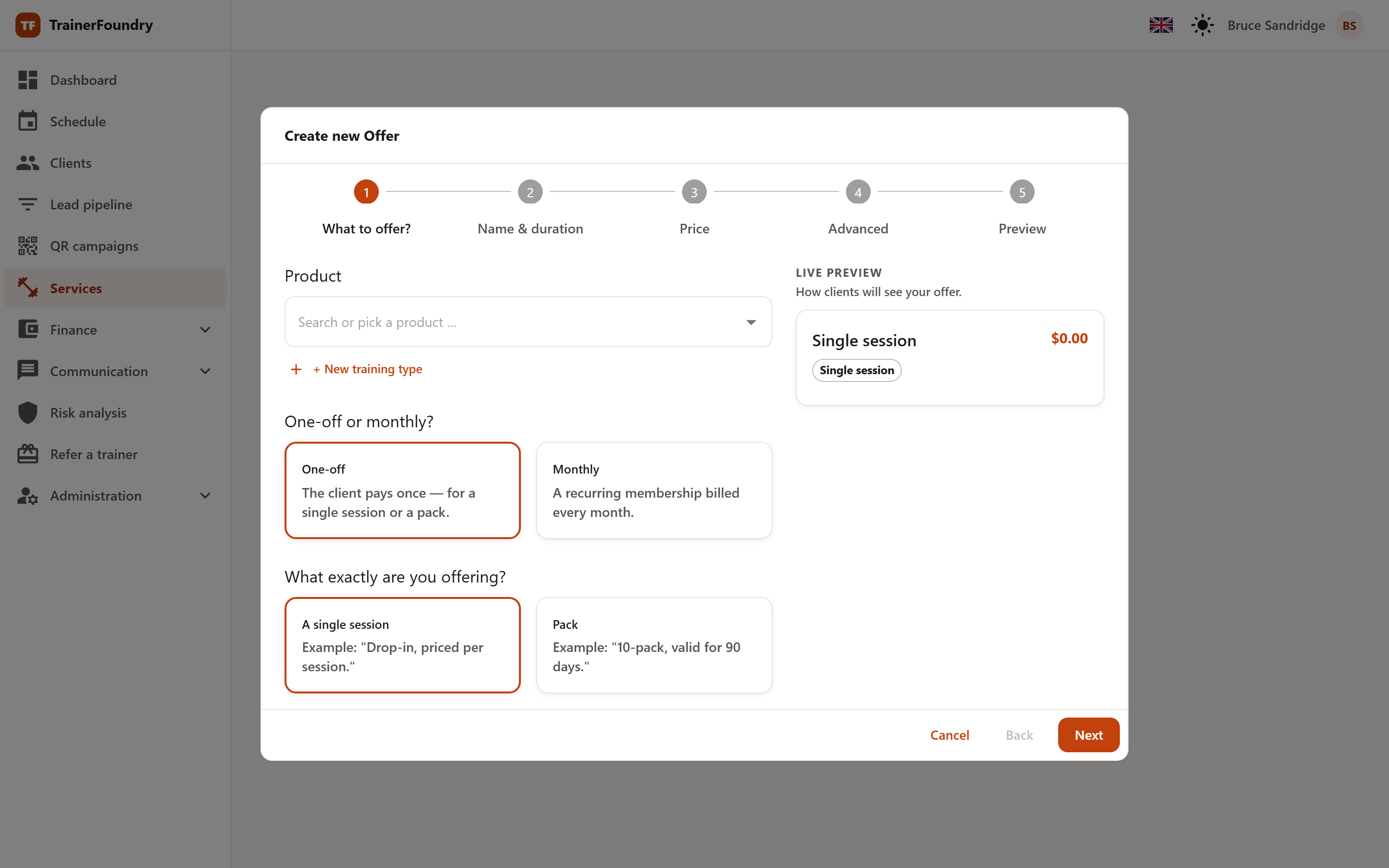
You create offers either directly in the third step of the wizard above, or later via Add offer on the relevant training type in the services list. Either way, the training type is already pre-selected. A dedicated wizard walks you through five steps — four for a single session, which skips step 4 (Advanced):
- 1 What to offer? — first the question "One-off or monthly?", then the matching variant (see below). The technical names stay in the background; you choose based on short examples.
- 2 Name & duration — the display name clients see for the offer in the catalog. The duration comes from the training type and can't be changed here.
- 3 Price — depending on the variant, the one-off or monthly price, plus quantities like the number of sessions or fixed slots per week. A live preview calculates the approximate price per session alongside it.
- 4 Advanced — optional policies (rollover, 24-hour cool-off, validity, cancellation notice). The defaults suit most offers. For a single session the wizard skips this step.
- 5 Preview — how the offer will appear in the backoffice catalog and in the Client App. Save creates the offer.
The offer variants at a glance
There are five variants — two one-off and three recurring memberships:
- Single session One-off
- A single session, paid once. The simplest variant — ideal for trial sessions or spontaneous bookings. Example: "Drop-in for $49."
- Session pack One-off
- Several sessions as a pack, paid once. Optionally with a validity period, after which unused sessions expire. Example: "10-pack for $450, valid for 90 days."
- Membership (flexible) Monthly
- A fixed number of sessions per month that the client can book freely — with a recurring monthly charge. Example: "4 sessions per month, book any time — $99/month."
- Membership (standing slots) Monthly
- The client sets fixed weekly slots at sign-up. Once their payment has come in, the sessions are created automatically on the calendar — same time, every week. Example: "Mon + Wed at 6 pm — $149/month."
- Membership (unlimited) Monthly
- Unlimited bookings for as long as the membership stays active. Available for group sessions only. Example: "Unlimited group sessions — $199/month."
The three memberships are billed monthly through your connected Stripe account — they can only be created once Stripe setup is complete. Single sessions and session packs also work without Stripe.
Walk-in & drop-in — not their own offer types
Two terms come up around offers but are not a separate offer variant:
- Drop-in is simply a common name for a single session — a single, one-off paid session. You represent it as a single-session offer.
- Walk-in is an action in the calendar, not in the services catalog: you add a spontaneous participant directly to a running or upcoming group session and take payment on the spot. It doesn't require an offer to be created beforehand, and is mentioned here only for completeness — more on it under Calendar & sessions.
Advanced policies
There is no per-offer setting for cancellations; the same rule applies to every offer: when your client cancels in time, they get their credit back, also for an already-paid single session. When they cancel too late, that is inside the training type's cancellation window, the credit is forfeited. When you cancel, your client always gets their credit back.
In the Advanced step you can deviate from the default per offer. These settings are optional:
- End-of-cycle rollover (memberships)
- Expire (default) — unused sessions expire at the end of the month. Carry over — they roll into the next month.
- 24-hour cool-off (memberships)
- Lets the client cancel within 24 hours of signing up, with a full refund.
- Validity (days)
- Session packs only. Number of days after which unused sessions of a pack expire. Leave blank if the pack never expires.
- Cancellation notice (hours)
- Membership (standing slots) only. Optional — sets a notice period, in hours, for cancelling this subscription.